# How to Install Tomcat 11 on Ubuntu 24.04
> URL: https://www.atlantic.net/dedicated-server-hosting/how-to-install-tomcat-11-on-ubuntu-24-04/ | Published: 2024-01-12 | Updated: 2025-07-05 | Author: Hitesh Jethva
Tomcat, also called Apache Tomcat, is an open-source web server and servlet container for deploying Java-based applications. It is lightweight, easy to use, has a robust ecosystem, and powers many large-scale web applications. Using Apache will boost your website performance and help you to have a better hosting experience.
## Step 1 – Install Java OpenJDK
Apache Tomcat is a Java-based application, so you will need to install Java JDK on your server. You can install it using the following command.
```
apt install openjdk-17-jdk
```
Once Java is installed, you can verify the Java installation using the following command.
```
java -version
```
Output.
```
openjdk version "17.0.15" 2025-04-15
OpenJDK Runtime Environment (build 17.0.15+6-Ubuntu-0ubuntu124.04)
OpenJDK 64-Bit Server VM (build 17.0.15+6-Ubuntu-0ubuntu124.04, mixed mode, sharing)
```
## Step 2 – Download Apache Tomcat
First, create a dedicated user to run Apache Tomcat.
```
useradd -r -m -U -d /opt/tomcat -s /bin/false tomcat
```
Next, download the Apache Tomcat from their official website.
```
wget -O tomcat.tar.gz https://dlcdn.apache.org/tomcat/tomcat-11/v11.0.7/bin/apache-tomcat-11.0.7.tar.gz
```
Then, extract the downloaded file.
```
tar xzf apache-tomcat-11.0.7.tar.gz
```
Next, move the extracted directory to /opt.
```
mv apache-tomcat-11.0.7/* /opt/tomcat/
```
Next, set proper permissions and ownership on the Tomcat directory.
```
chown -R tomcat: /opt/tomcat
sh -c 'chmod +x /opt/tomcat/bin/*.sh'
```
## Step 3 – Create a Tomcat User Account
Next, you must create an admin and manager account to access the Tomcat application. You can create it by editing tomcat-users.xml file.
```
nano /opt/tomcat/conf/tomcat-users.xml
```
Add the following lines above the last line.
```
```
Save and close the file when you are done.
## Step 4 – Allow Remote Hosts to Access Tomcat
By default, Tomcat is accessible only from the local host. To allow access from the remote host, you must modify Tomcat configuration files.
To allow access to the Manager app, edit the context.xml file.
```
nano /opt/tomcat/webapps/manager/META-INF/context.xml
```
Remove the following line.
```
```
To allow access to the Host Manager app, edit the context.xml file.
```
nano /opt/tomcat/webapps/host-manager/META-INF/context.xml
```
Remove the following line.
```
```
Save and close the file.
## Step 5 – Create a Systemd Service File for Tomcat
Next, you must create a systemd service file to manage the Tomcat service.
```
nano /etc/systemd/system/tomcat.service
```
Add the following lines.
```
[Unit]
Description=Apache Tomcat 11 Web Application Server
After=network.target
[Service]
Type=forking
User=tomcat
Group=tomcat
Environment="JAVA_HOME=/usr/lib/jvm/java-17-openjdk-amd64"
Environment="CATALINA_HOME=/opt/tomcat"
Environment="CATALINA_BASE=/opt/tomcat"
Environment="CATALINA_PID=/opt/tomcat/temp/tomcat.pid"
Environment="CATALINA_OPTS=-Xms512M -Xmx1024M -server -XX:+UseParallelGC"
ExecStart=/opt/tomcat/bin/startup.sh
ExecStop=/opt/tomcat/bin/shutdown.sh
[Install]
WantedBy=multi-user.target
```
Save and close the file, then reload the systemd daemon to apply the changes.
```
systemctl daemon-reload
```
Next, start the Tomcat service with the following command.
```
systemctl start tomcat
```
You can check the status of Tomcat with the following command.
```
systemctl status tomcat
```
Output.
```
● tomcat.service - Apache Tomcat 11 Web Application Server
Loaded: loaded (/etc/systemd/system/tomcat.service; disabled; preset: enabled)
Active: active (running) since Wed 2025-05-14 06:56:11 UTC; 4s ago
Process: 6276 ExecStart=/opt/tomcat/bin/startup.sh (code=exited, status=0/SUCCESS)
Main PID: 6283 (java)
Tasks: 31 (limit: 4609)
Memory: 112.0M (peak: 112.4M)
CPU: 2.865s
CGroup: /system.slice/tomcat.service
└─6283 /usr/lib/jvm/java-17-openjdk-amd64/bin/java -Djava.util.logging.config.file=/opt/tomcat/conf/logging.properties -Djava.util.logging.manager=org.apa>
May 14 06:56:11 ubuntu systemd[1]: Starting tomcat.service - Apache Tomcat 11 Web Application Server...
May 14 06:56:11 ubuntu startup.sh[6276]: Tomcat started.
May 14 06:56:11 ubuntu systemd[1]: Started tomcat.service - Apache Tomcat 11 Web Application Server.
```
## Step 6 – Access Tomcat Web UI
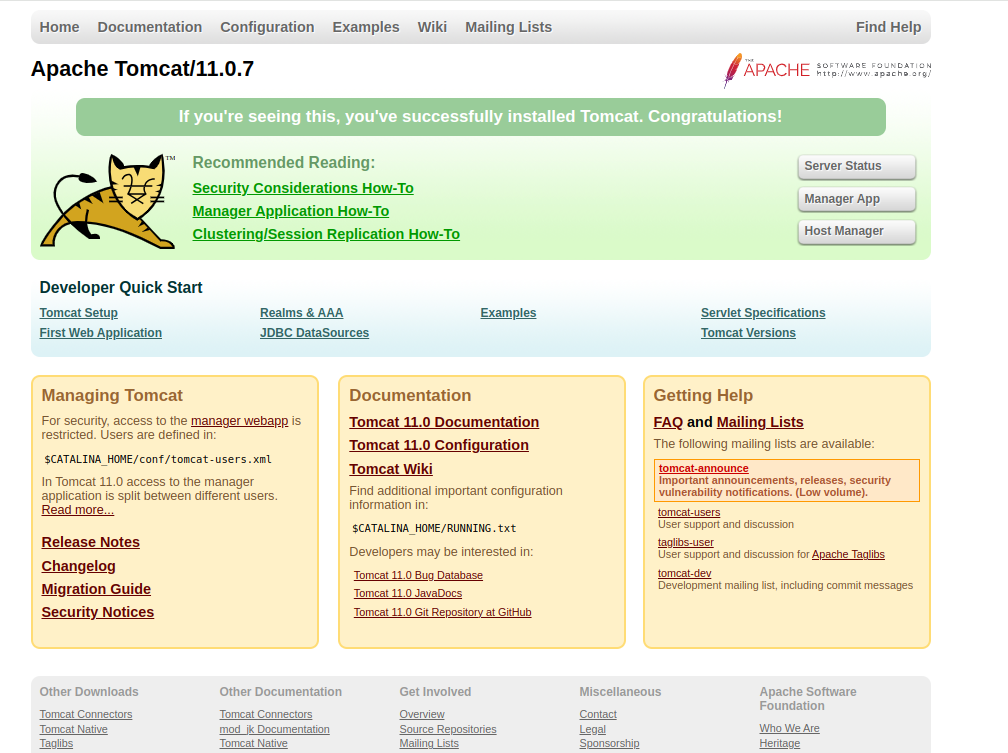
Now, open your web browser and access the Tomcat UI using the URL **http://your-server-ip:8080.** You will see the following page.
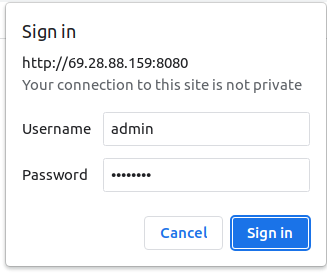
Click on the **manager app, and you** will be asked to provide an admin username and password.
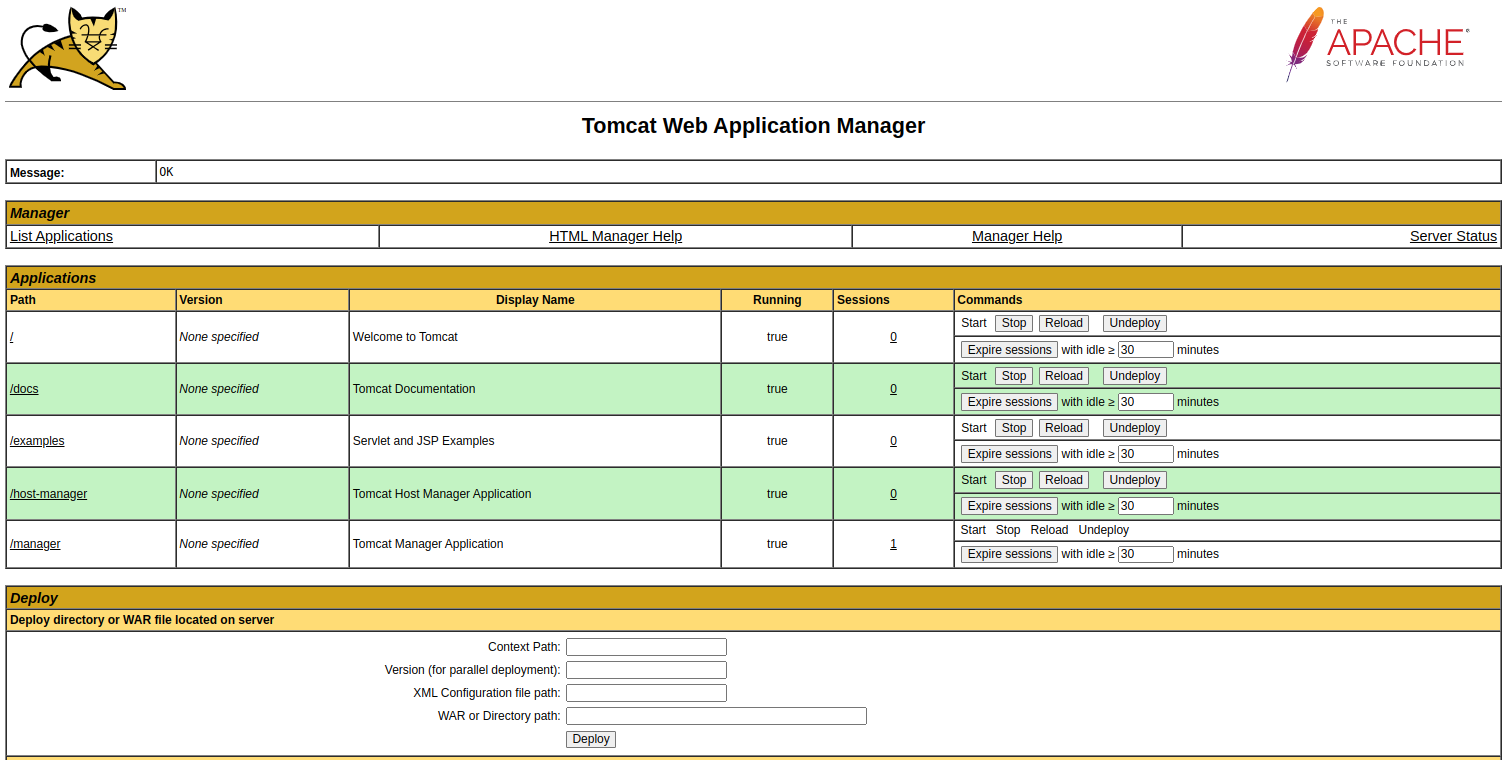
Provide your admin username and password and click on **Sign in.** You will see the manager app dashboard.
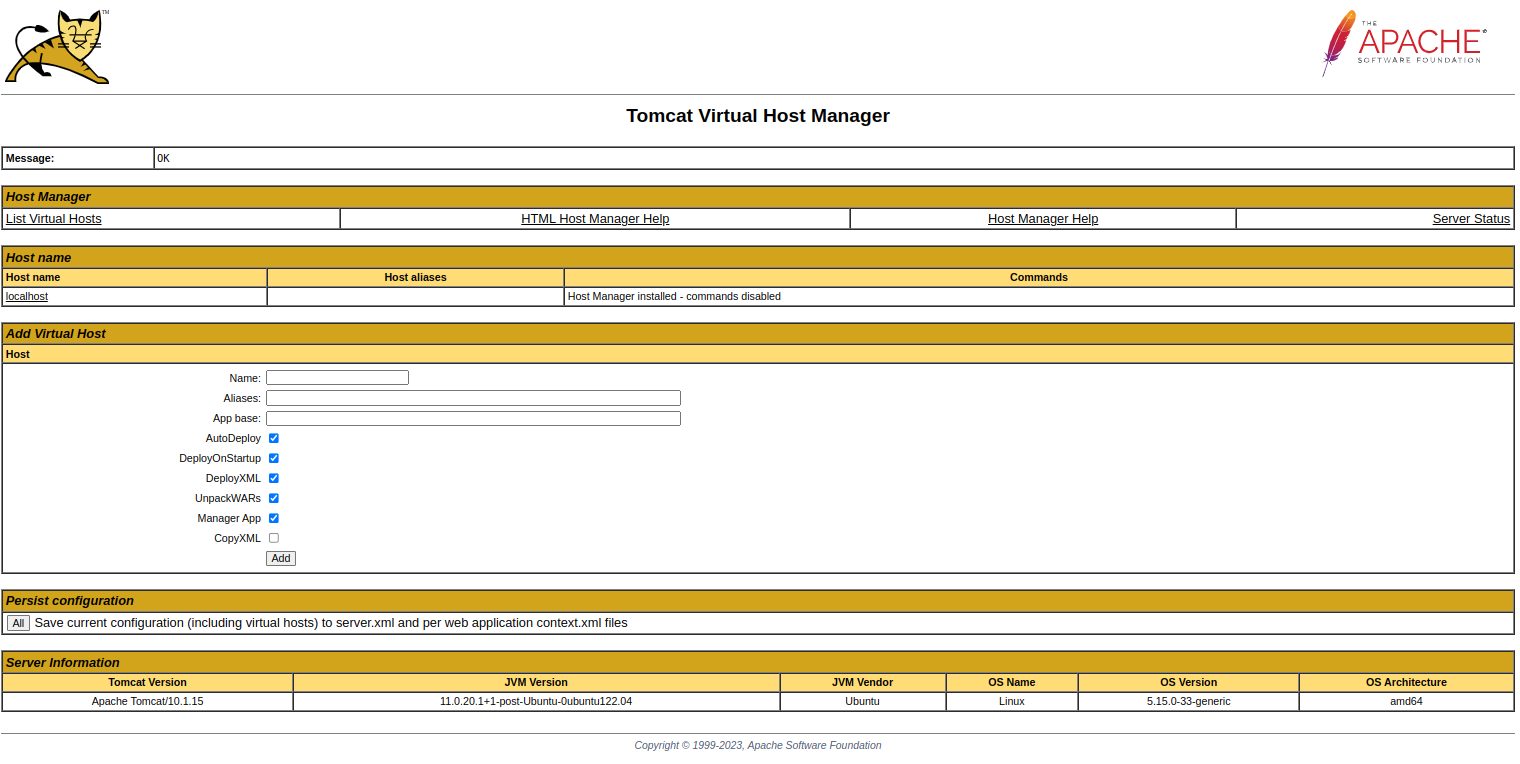
Click **Host Manager** on the Tomcat Home page. You will see the Tomcat Host Manager on the following screen.
## Conclusion
Congratulations! You have successfully installed Apache Tomcat 11 on Ubuntu 24.04. You can now build a Java application and deploy it using the Apache Tomcat. Try to deploy the Tomcat web server on [dedicated server hosting](https://www.atlantic.net/dedicated-server-hosting/) from Atlantic.Net!