# How to Install and Configure Apache Webserver on Oracle Linux
> URL: https://www.atlantic.net/vps-hosting/how-to-install-and-configure-apache-webserver-on-oracle-linux/ | Published: 2022-06-20 | Updated: 2025-12-30 | Author: Hitesh Jethva
Free, open-source Apache is one of the most popular web servers on the internet. It was developed and maintained by the Apache Software Foundation. Apache is reliable, secure, and fast and can be customized using extensions and modules. Due to its stability, efficiency, and popularity, it is used by many web hosting companies worldwide. It supports all major operating systems, including Linux, Windows, macOS, Solaris, etc.
In this post, we will explain how to install an Apache web server on Oracle Linux 10.
## Step 1 – Install Apache on Oracle Linux 10
By default, the latest version of Apache is available in the Oracle Linux default repository. You can install it by running the following commands:
```
dnf update -y
```
```
dnf install httpd -y
```
Once the Apache package is installed, verify the package information using the following command:
```
apachectl -V
```
You will get the following output:
```
Server version: Apache/2.4.63 (Oracle Linux Server)
Server built: Dec 22 2025 00:00:00
Server's Module Magic Number: 20120211:139
Server loaded: APR 1.7.5, APR-UTIL 1.6.3, PCRE 10.44 2024-06-07
Compiled using: APR 1.7.5, APR-UTIL 1.6.3, PCRE 10.44 2024-06-07
Architecture: 64-bit
Server MPM: event
threaded: yes (fixed thread count)
forked: yes (variable process count)
Server compiled with....
-D APR_HAS_SENDFILE
-D APR_HAS_MMAP
-D APR_HAVE_IPV6 (IPv4-mapped addresses enabled)
-D APR_USE_PROC_PTHREAD_SERIALIZE
-D APR_USE_PTHREAD_SERIALIZE
-D SINGLE_LISTEN_UNSERIALIZED_ACCEPT
-D APR_HAS_OTHER_CHILD
-D AP_HAVE_RELIABLE_PIPED_LOGS
-D DYNAMIC_MODULE_LIMIT=256
-D HTTPD_ROOT="/etc/httpd"
-D SUEXEC_BIN="/usr/sbin/suexec"
-D DEFAULT_PIDLOG="run/httpd.pid"
-D DEFAULT_SCOREBOARD="logs/apache_runtime_status"
-D DEFAULT_ERRORLOG="logs/error_log"
-D AP_TYPES_CONFIG_FILE="conf/mime.types"
-D SERVER_CONFIG_FILE="conf/httpd.conf"
```
#### Also Read
[Host Multiple Websites on a Single Server Using Apache Web Server](https://www.atlantic.net/vps-hosting/host-multiple-websites-on-a-single-server-with-apache-on-ubuntu/)
## Step 2 – Manage Apache Service
By default, the Apache webserver service is managed by systemd. You can control it easily using the systemctl command-line utility.
To start the Apache service, run the following command:
```
systemctl start httpd
```
To restart the Apache service, run the following command:
```
systemctl restart httpd
```
To enable the Apache service, run the following command:
```
systemctl enable httpd
```
To check the status of the Apache service, run the following command:
```
systemctl status httpd
```
You will get the following output:
```
● httpd.service - The Apache HTTP Server
Loaded: loaded (/usr/lib/systemd/system/httpd.service; disabled; vendor preset: disabled)
Active: active (running) since Wed 2022-06-08 11:41:51 EDT; 25min ago
Docs: man:httpd.service(8)
Main PID: 3745 (httpd)
Status: "Running, listening on: port 80"
Tasks: 213 (limit: 23694)
Memory: 25.2M
CGroup: /system.slice/httpd.service
├─3745 /usr/sbin/httpd -DFOREGROUND
├─3760 /usr/sbin/httpd -DFOREGROUND
├─3765 /usr/sbin/httpd -DFOREGROUND
├─3766 /usr/sbin/httpd -DFOREGROUND
└─3767 /usr/sbin/httpd -DFOREGROUND
Jun 08 11:41:51 oraclelinux8 systemd[1]: Starting The Apache HTTP Server...
```
## Step 3 – Configure Firewall
By default, Apache listens on ports **80** and **443**. If a firewall is installed and configured to your server, then you will need to allow both ports via firewalld. You can allow them with the following command:
```
firewall-cmd --permanent --zone=public --add-service=http
firewall-cmd --permanent --zone=public --add-service=https
```
Next, reload the firewalld to apply the changes:
```
firewall-cmd --reload
```
## Step 4 – Access Apache Default Web Page
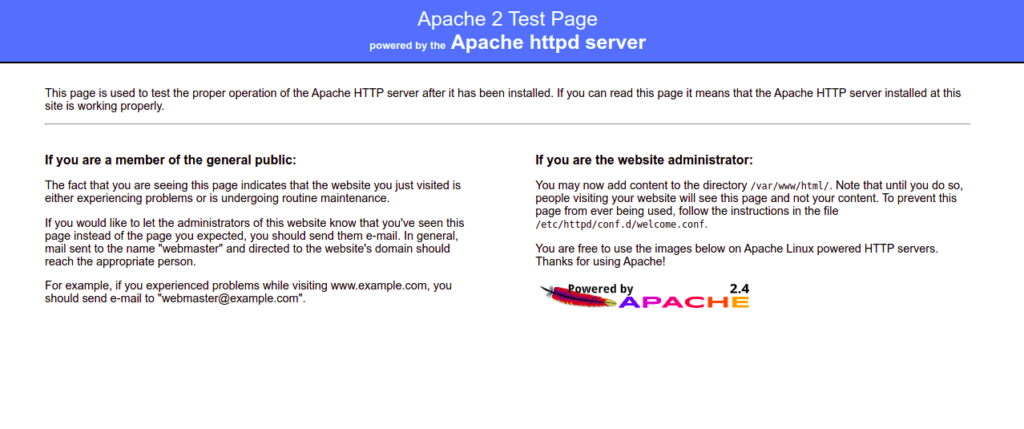
At this point, the Apache web server is installed and listens on port 80. You can now open your web browser and access the Apache test page using the URL **http://your-server-ip**. You should see the Apache default page on the following screen:
## Step 5 – Host a Simple Website with Apache
First, create a directory to hold the website data with the following command:
```
mkdir /var/www/html/web.example.com
```
Next, create a simple HTML file inside the website directory:
```
nano /var/www/html/web.example.com/index.html
```
Add the following HTML code:
```
Welcome to the Apache Webserver!
```
Save and close the file, then change the ownership and permissions of the website directory:
```
chown -R apache:apache /var/www/html/web.example.com/
chmod -R 775 /var/www/html/web.example.com/
```
Next, create an Apache virtual host configuration file to define your website directory:
```
nano /etc/httpd/conf/example.conf
```
Add the following configuration:
```
ServerAdmin web.example.com
DocumentRoot /var/www/html/web.example.com
DirectoryIndex index.html
ErrorLog /var/log/httpd/error.log
CustomLog /var/log/httpd/access.log combined
```
Save and close the file, then restart the Apache service to apply the configuration changes:
```
systemctl restart httpd
```
Now, open your web browser and verify your website using the URL **http://web.example.com**. You should see your website page on the following screen:

#### Also Read
[How to Set Up Apache Virtual Hosting](https://www.atlantic.net/vps-hosting/how-to-set-apache-virtual-hosts-ubuntu-20-04/)
## Conclusion
In the above post, we explained how to install an Apache web server on Oracle Linux 10. We also explained how to create a new website and host it using the Apache virtual host. Try it on [VPS hosting](https://www.atlantic.net/vps-hosting/) from Atlantic.Net!