

 LAMP Illustration by
 Also, you can verify if all is working by opening your browser and going to http://youripaddress
If you do not know your IP address, you can run the following command:
ifconfig
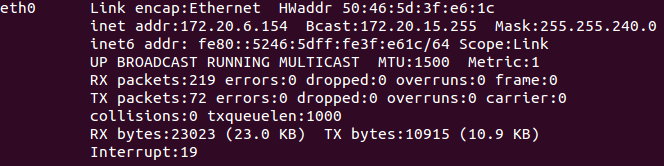
An example of ifconfig showing the IP address 172.20.6.154
In our case, we would put http://172.20.6.154 in your browser’s address bar and get the following page:
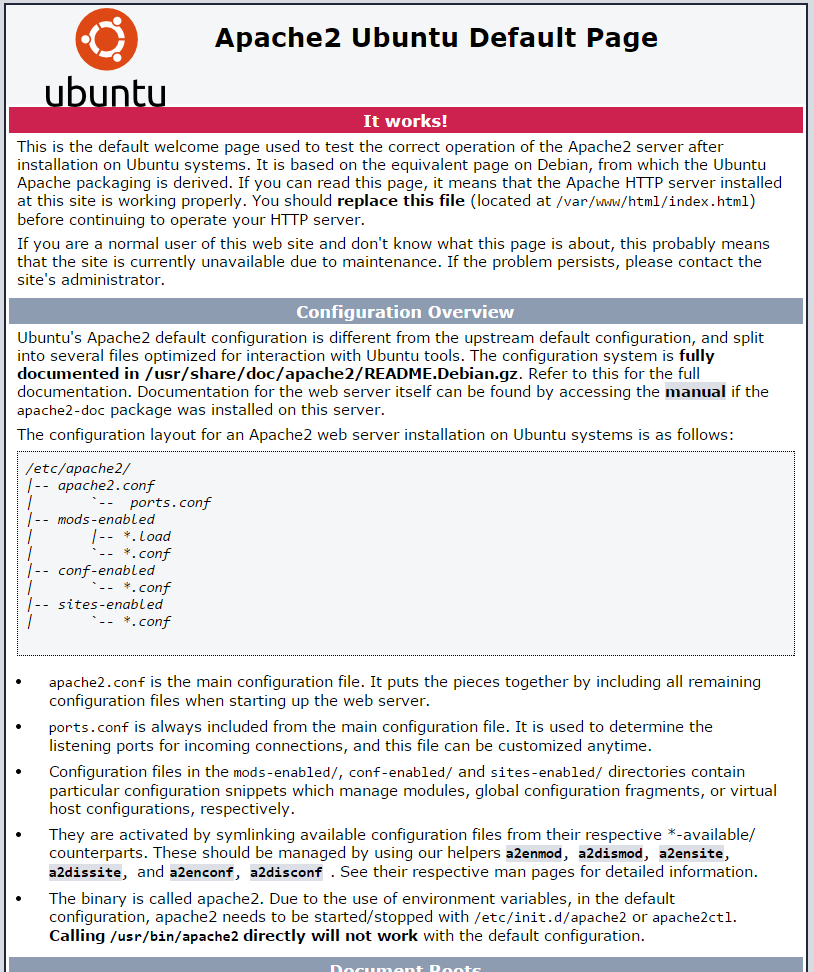
The default page for Apache on Ubuntu 14.04
Installing MySQL
Install MySQL with the following command:
sudo apt install mysql-server php7.0-mysql
Hit enter to when it asks “Do you want to continue?” during the install.
During the install, it will prompt you to enter a MySQL root password. Set any password that you would like. It should be a strong password.
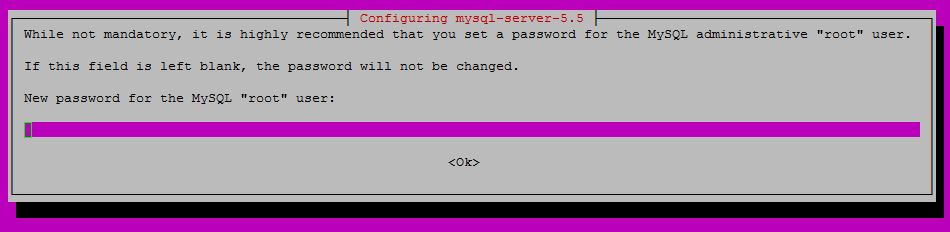
Enter a strong password of your choice.
After you enter your MySQL root password, you will need to re-enter it.
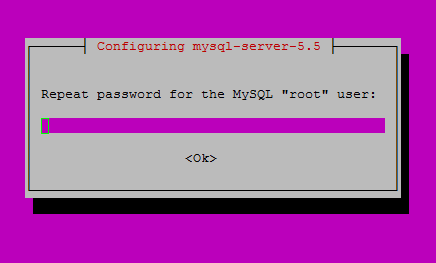
Re-enter the password you set before
Continue with the MySQL Security installation with the following command:
mysql_secure_installation
Note: You will be prompted with a series of questions. Just type N for the change root password and Y for yes on all of the rest, see the screen shot below:
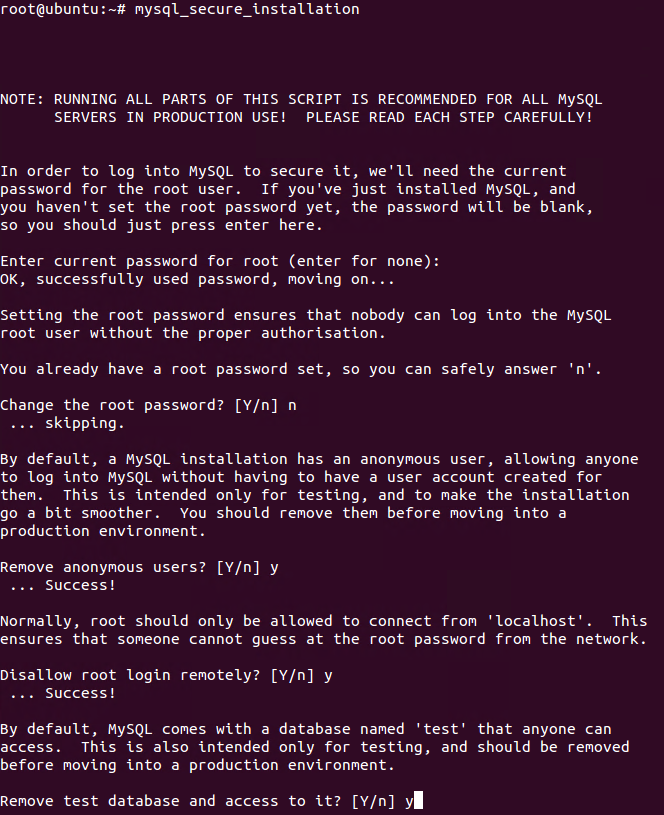
An example of what mysql_secure_installation looks like
Verify that MySQL is running with the following command:
service mysql status
Installing PHP
Install PHP with the following command:
apt install php libapache2-mod-php
Hit enter to when it asks “Do you want to continue?” during the install.
Create a test PHP file called info.php in /var/www/html/. In this how-to, we will be using the text editor nano with the following command:
nano /var/www/html/info.php
Insert the following code in the text editor then save and exit:
<?php
phpinfo();
?>
Since we made changes, we need to restart Apache so that the changes take effect:
service apache2 restart
Test your page in your browser with the following hyperlink changed with your IP address:
http://youripaddress/info.php
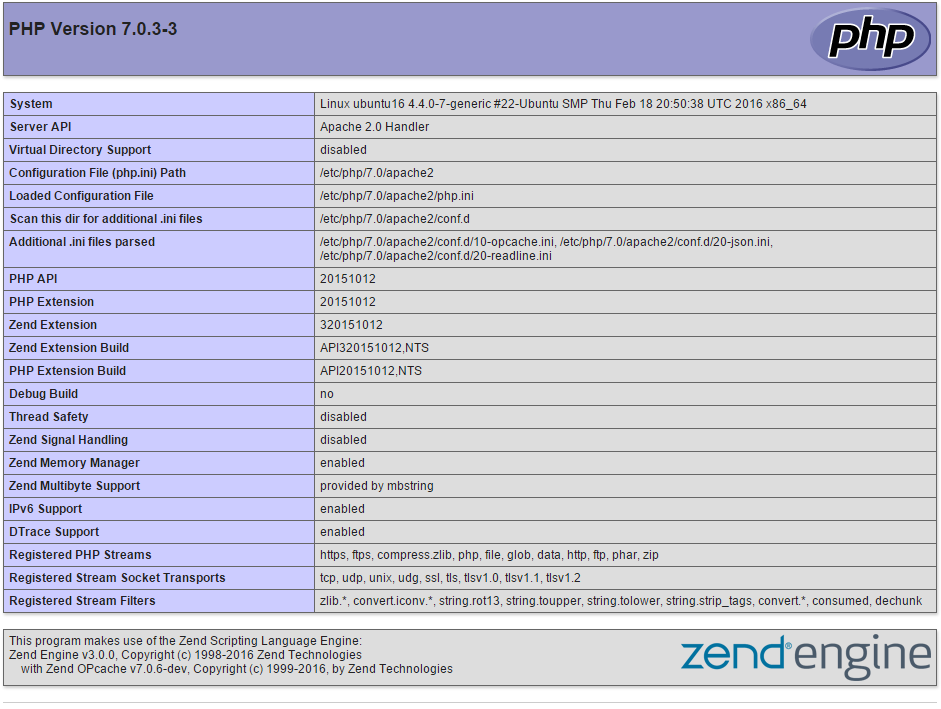
The result of the php.info file you made.
Congratulations! You have just installed LAMP on your Ubuntu 16.04 Server. Thank you for following this How-To on installing LAMP, please check back for more updates or head over to our blog and check out useful articles like LAMP vs. WAMP: Why do Startups Prefer LAMP to WAMP?