
Linux is a powerful open-source operating system and one of the most popular choices for servers, cloud deployments, and enterprise applications. Every Linux distribution includes built-in monitoring tools that help administrators troubleshoot performance issues, analyze resource usage, and identify the top memory consuming process in Linux.
When a website, database, application, or background script becomes slow, excessive RAM usage may be the problem. Common memory-consuming processes include web browsers and databases. In some situations, a process continuously increases its memory allocation, and an increasing RES value in a process might indicate a memory leak.
This article explains how to use Linux commands such as ps, top, htop, free, vmstat, and smem to identify memory-intensive processes, analyze RAM consumption, and learn how Linux manages memory resources.
Understanding Linux Memory Metrics
Before identifying high-memory processes, it is important to understand several memory-related details displayed by Linux monitoring tools.
| Column | Description |
|---|---|
| VSZ | Virtual memory size allocated to a process |
| RSS | Resident Set Size (actual memory stored in RAM) |
| %MEM | Memory usage percentage |
| PID | Process ID |
| USER | Process owner |
| COMMAND | Program name or executable |
Memory values may be displayed in KB, megabytes, or gigabytes, depending on the command and system configuration.
The /proc/meminfo file provides a detailed breakdown of RAM usage on a Linux or Unix system.
You can view memory information with:
cat /proc/meminfo
Use ps Command to Find Top Processes
The ps command is a Linux command-line utility that displays information about running processes.
To list all running processes:
ps aux
This command displays process details including CPU usage, memory usage, and command information.
USER       PID %CPU %MEM    VSZ   RSS TTY      STAT START   TIME COMMAND
root         1  0.1  0.1 160716  9904 ?        Ss   16:58   0:06 /sbin/init splash
root         2  0.0  0.0      0     0 ?        S    16:58   0:00 [kthreadd]
root         3  0.0  0.0      0     0 ?        I<   16:58   0:00 [rcu_gp]
root         4  0.0  0.0      0     0 ?        I<   16:58   0:00 [rcu_par_gp]
root         6  0.0  0.0      0     0 ?        I<   16:58   0:00 [kworker/0:0H-kb]
root         9  0.0  0.0      0     0 ?        I<   16:58   0:00 [mm_percpu_wq]
root        10  0.0  0.0      0     0 ?        S    16:58   0:00 [ksoftirqd/0]
root        11  0.1  0.0      0     0 ?        I    16:58   0:05 [rcu_sched]
root        12  0.0  0.0      0     0 ?        S    16:58   0:00 [migration/0]
Find Top Processes by Memory Usage
To display processes sorted by memory usage:
ps aux --sort -%mem
Output:
USER       PID %CPU %MEM    VSZ   RSS TTY      STAT START   TIME COMMAND
vyom      2806  4.4  4.5 17562832 343688 tty2  SLl+ 17:01   3:26 /opt/google/chrome/chrome --enable-crashpad
vyom      8115  7.8  3.0 25770108 232204 tty2  Sl+  17:58   1:38 /opt/google/chrome/chrome --type=renderer --enable-crashpad --crashpad-handler-pid=2815 --enable-crash-reporter=373d0de2-e0c8-419c-b983-084c773fcd79, --display-capture-permissions-policy-allowed --change-stack-guard-on-fork=enable --lang=en-GB --num-raster-threads=1 --renderer-client-id=82 --launch-time-ticks=3564377766 --shared-files=v8_context_snapshot_data:100 --field-trial-handle=0,i,7343938639469663677,16234295293987540603,131072 --enable-features=PasswordImport
vyom      8164  6.1  3.0 25705000 230116 tty2  Sl+  17:58   1:16 /opt/google/chrome/chrome --type=renderer --enable-crashpad --crashpad-handler-pid=2815 --enable-crash-reporter=373d0de2-e0c8-419c-b983-084c773fcd79, --display-capture-permissions-policy-allowed --change-stack-guard-on-fork=enable --lang=en-GB --num-raster-threads=1 --renderer-client-id=85 --launch-time-ticks=3576904510 --shared-files=v8_context_snapshot_data:100 --field-trial-handle=0,i,7343938639469663677,16234295293987540603,131072 --enable-features=PasswordImport
The process at the top of the output is usually the top memory consuming process in Linux at that moment.
To show only the top 10 memory-consuming processes:
ps aux --sort -%mem | head -10
To display only important process information:
ps -eo pid,ppid,cmd,comm,%mem,%cpu --sort=-%mem | head -10
The RSS value is typically displayed in KB, while %MEM shows the percentage of physical memory consumed.
Find Top Processes by CPU Usage
To sort processes by CPU usage:
ps aux --sort -%cpu
Output:
USER       PID %CPU %MEM    VSZ   RSS TTY      STAT START   TIME COMMAND
vyom      8115  7.8  3.0 25770108 233784 tty2  Sl+  17:58   1:37 /opt/google/chrome/chrome --type=renderer --enable-crashpad --crashpad-handler-pid=2815 --enable-crash-reporter=373d0de2-e0c8-419c-b983-084c773fcd79, --display-capture-permissions-policy-allowed --change-stack-guard-on-fork=enable --lang=en-GB --num-raster-threads=1 --renderer-client-id=82 --launch-time-ticks=3564377766 --shared-files=v8_context_snapshot_data:100 --field-trial-handle=0,i,7343938639469663677,16234295293987540603,131072 --enable-features=PasswordImport
vyom      8164  6.2  3.0 25705000 233456 tty2  Sl+  17:58   1:16 /opt/google/chrome/chrome --type=renderer --enable-crashpad --crashpad-handler-pid=2815 --enable-crash-reporter=373d0de2-e0c8-419c-b983-084c773fcd79, --display-capture-permissions-policy-allowed --change-stack-guard-on-fork=enable --lang=en-GB --num-raster-threads=1 --renderer-client-id=85 --launch-time-ticks=3576904510 --shared-files=v8_context_snapshot_data:100 --field-trial-handle=0,i,7343938639469663677,16234295293987540603,131072 --enable-features=PasswordImport
vyom      2806  4.4  4.5 17565904 343660 tty2  SLl+ 17:01   3:26 /opt/google/chrome/chrome --enable-crashpad
vyom      2314  4.3  2.9 3472696 222248 tty2   Rl+  17:00   3:22 /usr/bin/gnome-shell
Also Read
How to Check Linux CPU Usage or Utilization
Use the top Command to Find Top Processes by Memory and CPU Usage
top is another built-in Linux command-line utility that can be used to show all running processes in Linux. You can use various options with the top command to filter the output based on your requirements.
You can use the top command with the -o flag to show the top memory consuming processes:
top -o %MEM
Output:
Tasks: 329 total,   1 running, 281 sleeping,   0 stopped,   0 zombie
%Cpu(s):  1.5 us,  0.7 sy,  0.0 ni, 94.6 id,  3.2 wa,  0.0 hi,  0.0 si,  0.0 st
KiB Mem :  7580260 total,  2602168 free,  2668376 used,  2309716 buff/cache
KiB Swap:  2097148 total,  2097148 free,        0 used.  4486960 avail Mem

  PID USER      PR  NI    VIRT    RES    SHR S  %CPU %MEM     TIME+ COMMAND
 2806 vyom      20   0 16.753g 343596 183124 S   0.0  4.5   3:37.39 chrome
 8164 vyom      20   0 24.516g 241968 103164 S   0.0  3.2   1:44.22 chrome
 8115 vyom      20   0 24.570g 237756 113464 S   0.0  3.1   2:04.79 chrome
 2314 vyom      20   0 3472696 222248  97556 S   1.3  2.9   3:49.13 gnome-shell
 8074 vyom      20   0 24.508g 187804 110344 S   0.0  2.5   0:11.59 chrome
 7520 vyom      20   0 24.563g 185760 104852 S   0.0  2.5   0:06.98 chrome
 2996 vyom      20   0 24.503g 185316  85720 S   0.0  2.4   0:27.90 chrome
 8175 vyom      20   0 24.518g 171224 100040 S   0.0  2.3   0:04.96 chrome
Once inside top, press Shift+m in top orders processes by memory usage.
If you want to display only the top 10 memory consuming processes, run the following command:
top -o %MEM | head -n 16
Output:
top - 18:31:11 up  1:32,  1 user,  load average: 0.32, 0.41, 0.65
Tasks: 330 total,   1 running, 282 sleeping,   0 stopped,   0 zombie
%Cpu(s): 14.3 us,  3.5 sy,  0.1 ni, 78.8 id,  3.1 wa,  0.0 hi,  0.1 si,  0.0 st
KiB Mem :  7580260 total,  2623576 free,  2655868 used,  2300816 buff/cache
KiB Swap:  2097148 total,  2097148 free,        0 used.  4508812 avail Mem

  PID USER      PR  NI    VIRT    RES    SHR S  %CPU %MEM     TIME+ COMMAND
 2806 vyom      20   0 16.749g 343920 183192 S   0.0  4.5   3:39.02 chrome
 8164 vyom      20   0 24.513g 232772 103276 S   0.0  3.1   1:45.33 chrome
 8115 vyom      20   0 24.557g 230336 111896 S   0.0  3.0   2:05.62 chrome
 2314 vyom      20   0 3472696 222880  97560 S   0.0  2.9   3:59.60 gnome-shell
 8074 vyom      20   0 24.508g 187740 110344 S   0.0  2.5   0:11.61 chrome
 7520 vyom      20   0 24.563g 185724 104852 S   0.0  2.5   0:06.99 chrome
 2996 vyom      20   0 24.503g 185012  85720 S   0.0  2.4   0:27.98 chrome
 8175 vyom      20   0 24.518g 171224 100040 S   0.0  2.3   0:04.97 chrome
 2735 vyom      20   0 37.371g 168668 119056 S   0.0  2.2   0:05.57 skypeforlinux
If you want to display only the top 10 CPU-consuming processes, run the following command:
top -o %CPU | head -n 16
Output:
top - 18:32:05 up  1:33,  1 user,  load average: 0.48, 0.43, 0.64
Tasks: 330 total,   1 running, 282 sleeping,   0 stopped,   0 zombie
%Cpu(s): 14.2 us,  3.5 sy,  0.1 ni, 78.9 id,  3.1 wa,  0.0 hi,  0.1 si,  0.0 st
KiB Mem :  7580260 total,  2621204 free,  2662180 used,  2296876 buff/cache
KiB Swap:  2097148 total,  2097148 free,        0 used.  4506588 avail Mem

  PID USER      PR  NI    VIRT    RES    SHR S  %CPU %MEM     TIME+ COMMAND
 2314 vyom      20   0 3472696 223296  97560 S  11.8  2.9   4:03.68 gnome-shell
 2161 vyom      20   0  998276  86120  55136 S   5.9  1.1   2:30.95 Xorg
 8822 vyom      20   0   44368   4188   3364 R   5.9  0.1   0:00.02 top
    1 root      20   0  160716   9904   6644 S   0.0  0.1   0:06.65 systemd
    2 root      20   0       0      0      0 S   0.0  0.0   0:00.00 kthreadd
    3 root       0 -20       0      0      0 I   0.0  0.0   0:00.00 rcu_gp
    4 root       0 -20       0      0      0 I   0.0  0.0   0:00.00 rcu_par_gp
    6 root       0 -20       0      0      0 I   0.0  0.0   0:00.00 kworker/0:0H-kb
    9 root       0 -20       0      0      0 I   0.0  0.0   0:00.00 mm_percpu_wq
Also Read
How to Check Size of Files and Directory on Linux
Use htop for an Interactive Display
Many administrators prefer htop because it provides a more user-friendly and interactive interface.
Install htop:
Ubuntu/Debian:
sudo apt install htop
RHEL/Rocky Linux/AlmaLinux:
sudo dnf install htop
Launch htop:
htop
Output:
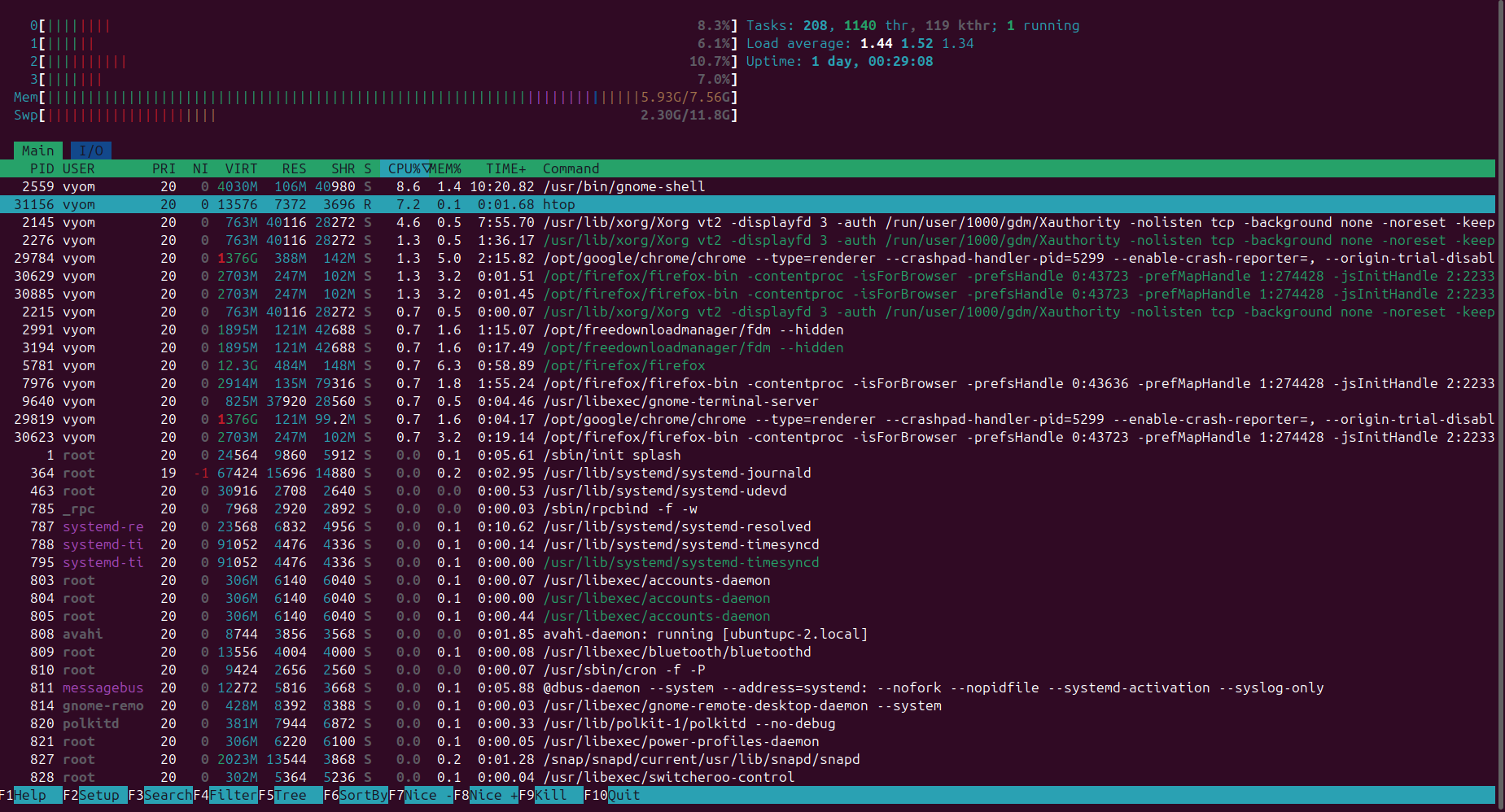
The htop command provides an interactive display of memory usage. The top section displays CPU utilization, RAM usage, swap utilization, and process statistics in real time.
Use the free Command to Check RAM Usage
The free command provides a quick overview of system memory usage.
free -h
Example output:
              total        used        free      shared  buff/cache   available
Mem:            15G        4.2G        5.3G        210M        5.5G         10G
Swap:            2G          0B         2G
The free command shows total, used, and free memory.
The -h option displays memory values in human-readable gigabytes and megabytes.
Use the vmstat Command to Monitor Memory Statistics
The vmstat command provides system-wide memory, process, and disk statistics.
Run:
vmstat 2
Example output:
procs -----------memory---------- ---swap-- -----io---- -system-- ------cpu-----
 r  b   swpd   free   buff  cache
 0  0      0 512000  40960 850000
Important vmstat columns include:
| Column | Description |
| free | Free memory |
| buff | Buffer memory |
| cache | Cached memory |
| si | Swap in |
| so | Swap out |
The vmstat command is useful for identifying memory pressure, swap activity, and I/O bottlenecks.
Use smem for Accurate Memory Reporting
Traditional Linux tools may not always calculate shared memory accurately.
Install smem:
Ubuntu/Debian:
sudo apt install smem
RHEL-based systems:
sudo dnf install smem
Display memory usage:
smem -r
The smem command calculates the Proportional Set Size (PSS) to accurately measure memory consumption.
Troubleshooting High Memory Usage
If your machine experiences slow performance, excessive waiting times, or application crashes, check for:
- Memory leaks
- Runaway applications
- Excessive caching
- Database processes are consuming RAM
- Browser processes use large amounts of memory
- Insufficient swap space
You can also add monitoring tools and regularly update your system to improve stability. Increasing RES value over time may indicate a memory leak.
Security Verification Note
When accessing monitoring dashboards or server management portals, you may occasionally encounter a security verification page.
Some websites use a security service to protect resources from automated traffic. A website uses a security mechanism that verifies visitors before granting access. While performing security verification, the security service may analyze browser behavior to protect against malicious bots.
If verification is successful, access is granted automatically. Otherwise, the page may display messages such as:
- “This website uses a security service.”
- “Protect against malicious bots.”
- “Please respond ray id when contacting support.”
- “You are being verified.”
- “Verification in progress.”
These messages are commonly displayed while the website checks incoming traffic and are unrelated to Linux memory monitoring.
Conclusion
Monitoring memory usage is an essential part of Linux administration. Tools such as ps, top, htop, free, vmstat, and smem help identify resource-intensive processes and troubleshoot performance issues quickly. By understanding metrics such as RSS, %MEM, PSS, cache utilization, and swap activity, you can accurately determine the top memory-consuming process in Linux and take corrective action before performance degrades.
Whether you manage a personal Unix workstation, an enterprise server, a virtual machine, or a production website, these tools provide valuable insights into memory utilization. Regular monitoring helps optimize applications, improve system stability, and maintain overall security and performance.

Written by
Hitesh Jethva is a regular contributor to the Atlantic.Net blog. With over 15 years of experience in Linux and open-source technologies, he founded Linux Buz, a website dedicated to Linux enthusiasts.