
Gatsby is a free and open-source framework based on the frontend development framework React. Gatsby allows developers to build fast, secure, and powerful websites using a React-based framework. With Gatsby, you can build a portfolio site or blog, or a high-traffic e-commerce store or company homepage. It follows the latest web standards and is optimized for speed and security. Gatsby brings the speed of a statically generated site as well as the functionality of a framework.
This post will show you how to install Gatsby on Oracle Linux 10.
Step 1 – Install Node.js and NPM
Before starting, you will need to install Node.js and NPM on your server.
You can Install Node.js and NPM using the following command:
dnf install -y nodejs npm
Next, install Git and the Yarn package with the following command:
dnf install git
npm install -i yarn
Next, verify the Node.js version using the following command:
node -v
Output:
v22.19.0
To verify the NPM version, run the following command:
npm -v
Output:
10.9.3
Step 2 – Install Gatsby CLI
Gatsby provides a CLI tool that allows you to create and manage projects via the command line. You can install it using the NPM command as shown below:
npm install -g gatsby-cli
Once Gatsby is installed, you can verify it using the following command:
gatsby --version
You will get the following output:
Gatsby CLI version: 5.15.0
Step 3 – Create a New Site Using Gatsby
After installing Gatsby, run the following command to create a new site:
gatsby new
You will be asked to create a site name and other options during the site creation process. Once the site is created, you should see the following output:
  Welcome to Gatsby!

This command will generate a new Gatsby site for you in /root with the setup you select. Let's answer some questions:

What would you like to call your site?
✔ · My Gatsby Site
What would you like to name the folder where your site will be created?
✔ root/ my-gatsby-site
✔ Will you be using JavaScript or TypeScript?
· JavaScript
✔ Will you be using a CMS?
· No (or I'll add it later)
✔ Would you like to install a styling system?
· No (or I'll add it later)


Thanks! Here's what we'll now do:

    🛠  Create a new Gatsby site in the folder my-gatsby-site


✔ Created site from template
▸ Installing Gatsby...
✔ Created site from template
✔ Installed Gatsby
✔ Installed plugins
✔ Created site in my-gatsby-site

Author identity unknown

*** Please tell me who you are.

Run

  git config --global user.email "[email protected]"
  git config --global user.name "Your Name"

to set your account's default identity.
Omit --global to set the identity only in this repository.

Initial git commit failed - removing git support

🎉  Your new Gatsby site new has been successfully created
at /root/my-gatsby-site.
Start by going to the directory with

  cd my-gatsby-site

Start the local development server with

  npm run develop

See all commands at

  https://www.gatsbyjs.com/docs/gatsby-cli/
Now, change the directory to your site and run the following command to start the development server:
cd my-gatsby-site
gatsby develop -H 0.0.0.0
Once the server is started, you will get the following output:
You can now view my-gatsby-site in the browser.
⠀
  http://localhost:8000/
⠀
View GraphiQL, an in-browser IDE, to explore your site's data and schema
⠀
  http://localhost:8000/___graphql
⠀
Note that the development build is not optimized.
To create a production build, use gatsby build
You can also use the following options to start the development server:
- -H, –host Set host. Defaults to localhost
- -p, –port Set port. Defaults to env.PORT or 8000
- -o, –open Open the site in your (default) browser for you
- -S, –https Use HTTPS
Step 4 – Access Gatsby Web Interface
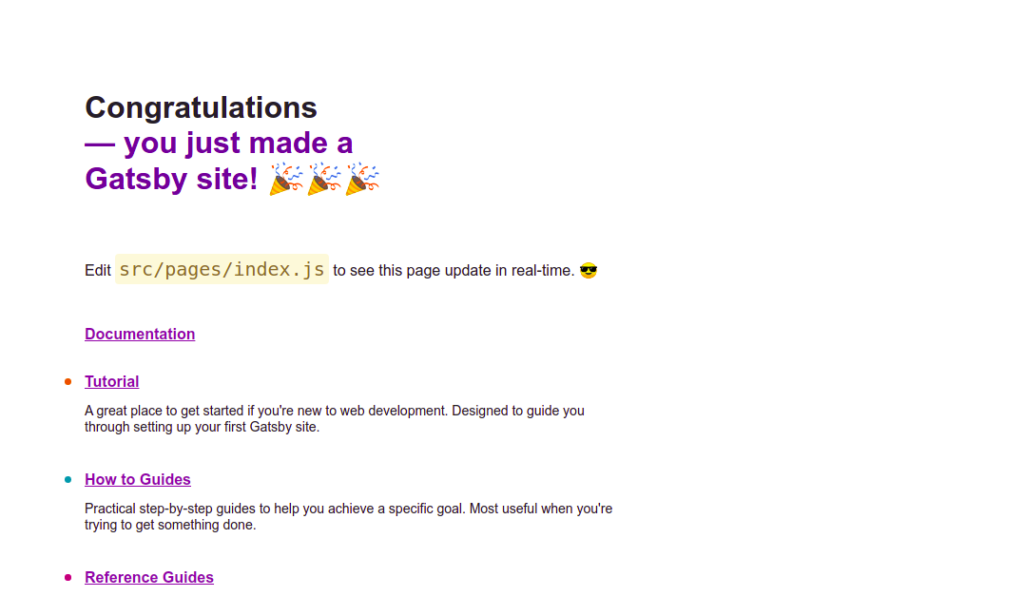
At this point, Gatsby is installed, started, and listens on port 8000. You can now access it using the URL http://your-server-ip:8000. You should see the Gatsby default page on the following screen:
Conclusion
In this post, you learned how to install Gatsby on Oracle Linux 10. Gatsby is very useful for e-commerce developers to make blazing-fast stores in minimal time. Try it on dedicated hosting from Atlantic.Net!
* This post is for informational purposes only and does not constitute professional, legal, financial, or technical advice. Each situation is unique and may require guidance from a qualified professional.
Readers should conduct their own due diligence before making any decisions.