
OpenCart is a free, open-source, web-based shopping cart e-commerce platform written in PHP. It allows you to start your own online shop to add, manage and sell products online. OpenCart provides an open-source code and enables you to customize it per your requirements. It is a simple, lightweight, user-friendly, and powerful store management program that allows you to manage multiple stores via a web browser. You can easily manage product inventory, orders, affiliates, discounts, product reviews, payment gateways, and more from the central location. If you are looking to host your own online store, then OpenCart is the best choice for you.
In this tutorial, we will show you how to install OpenCart on Oracle Linux 10.
Step 1 – Install LAMP Stack
Before starting, a LAMP Stack must be installed on your server. If not installed, you can install it using the following command:
dnf install httpd mariadb-server -y
After the installation, you will also need to install PHP version 8 and all required extensions.
Run the following command to install PHP 8.0 with all required extensions:
dnf install php php-fpm php-gd php-ldap php-zip php-odbc php-pear php-xml php-xmlrpc php-mbstring php-mysqlnd php-snmp php-soap curl curl-devel unzip git -y
Once PHP is installed with all the required packages, start the Apache and MariaDB services and enable them to start at system reboot:
systemctl start httpd php-fpm
systemctl enable httpd php-fpm
systemctl start mariadb
systemctl enable mariadb
Also Read
How to Install LAMP Server on Oracle Linux 8
Step 2 – Configure a Database for OpenCart
OpenCart uses MariaDB as a database backend, so you will need to create a database and user for OpenCart.
First, secure the MariaDB installation and set the MariaDB root password using the following command:
mysql_secure_installation
Answer all the questions as shown below:
Enter current password for root (enter for none):
Set root password? [Y/n] Y
New password:
Re-enter new password:
Remove anonymous users? [Y/n] Y
Disallow root login remotely? [Y/n] Y
Remove test database and access to it? [Y/n] Y
Reload privilege tables now? [Y/n] Y
Next, log in to MariaDB using the following command:
mysql -u root -p
Once you are connected to MariaDB, create a user and database with the following command:
CREATE DATABASE opencart;
CREATE USER 'opencart'@'localhost' IDENTIFIED BY 'password';
Next, grant all the privileges to the OpenCart database with the following command:
GRANT ALL PRIVILEGES ON opencart.* TO 'opencart'@'localhost';
Next, flush the privileges and exit from MariaDB with the following command:
FLUSH PRIVILEGES;
EXIT;
Step 3 – Download OpenCart Source
First, download the latest version of the OpenCart from the GitHub repository using the wget command:
wget https://github.com/opencart/opencart/archive/refs/tags/4.1.0.0.zip
Once the download is completed, unzip the downloaded file, navigate to the extracted directory and copy the upload directory to the Apache web root directory:
unzip 4.1.0.0.zip
cd opencart-4.1.0.0
mv upload /var/www/html/opencart
Next, copy some sample configuration files using the following command:
cp /var/www/html/opencart/config-dist.php /var/www/html/opencart/config.php
cp /var/www/html/opencart/admin/config-dist.php /var/www/html/opencart/admin/config.php
Next, set proper permissions and ownership using the following command:
chown -R apache:apache /var/www/html/opencart
chmod -R 777 /var/www/html/opencart
Step 4 – Create an Apache Virtual Host for OpenCart
Next, you will need to create an Apache virtual host configuration file to host OpenCart on the Internet:
nano /etc/httpd/conf.d/opencart.conf
Add the following lines:
<VirtualHost *:80>
ServerAdmin [email protected]
DocumentRoot /var/www/html/opencart/
ServerName opencart.example.com
<Directory /var/www/html/opencart/>
Options FollowSymLinks
AllowOverride All
Order allow,deny
allow from all
</Directory>
ErrorLog /var/log/httpd/yourdomain.com-error_log
CustomLog /var/log/httpd/yourdomain.com-access_log common
</VirtualHost>
Save and close the file, then restart the Apache service to apply the changes:
systemctl restart httpd
Step 5 – Configure Firewall
If you are using firewalld, then you will need to allow HTTP and HTTPS services through the firewall. You can allow them using the following command:
firewall-cmd --permanent --add-service=http
firewall-cmd --permanent --add-service=https
Next, reload firewalld to apply the changes:
firewall-cmd --reload
Step 6 – Access OpenCart Dashboard
You can now access the OpenCart Web UI using the URL http://opencart.example.com/install. You should see the following page:
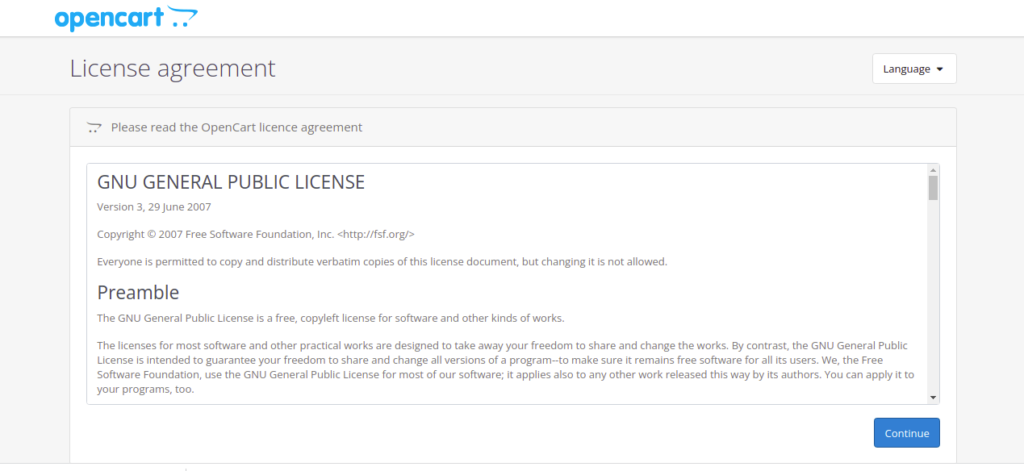
Accept the license agreement and click on the Continue button. You should see the following page:
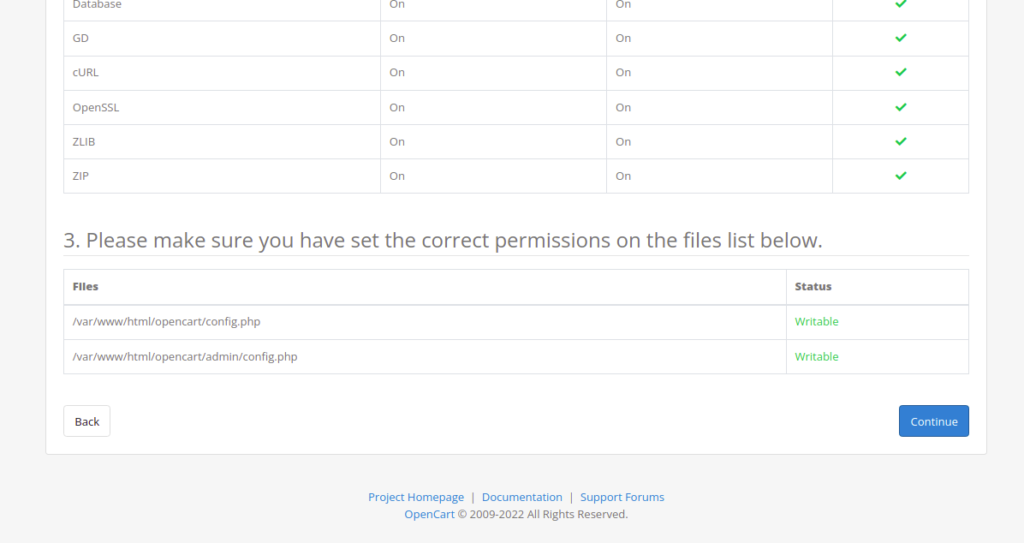
Make sure all PHP extensions are installed then click on the Continue button. You should see the following page:
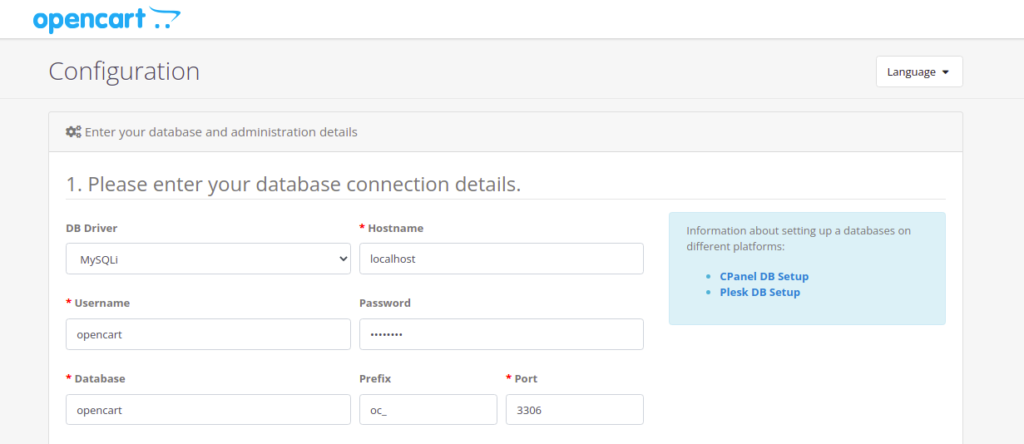
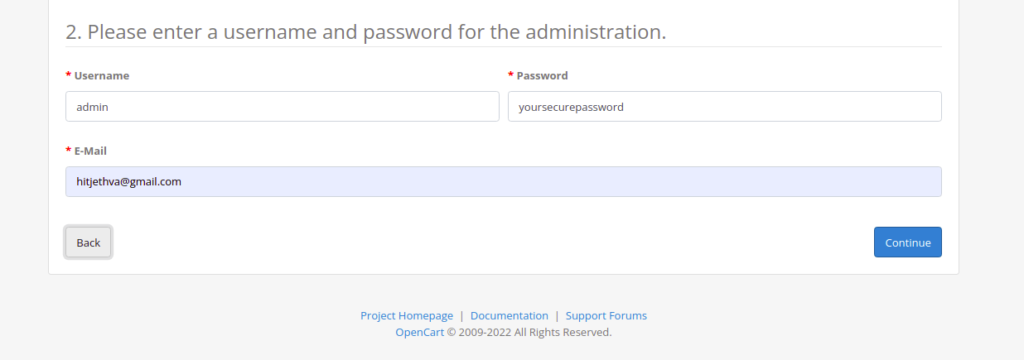
Provide your database details, admin username, and password, and click on the Continue button. You should see the following page:
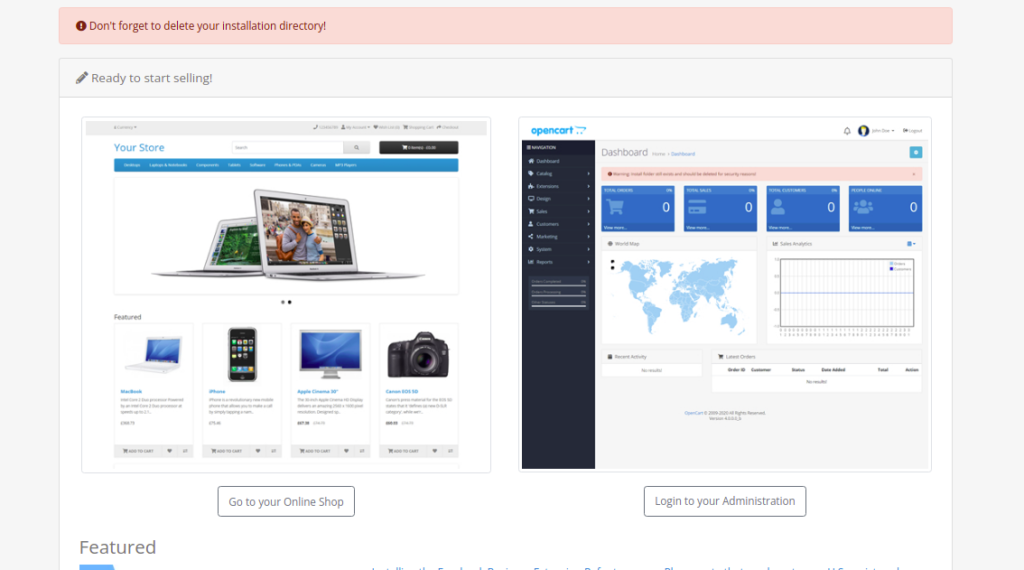
Now, open your terminal and remove the install directory using the following command:
rm -rf /var/www/html/opencart/install
Next, go back to the OpenCart web interface and click on Login to your Administration. You should see the OpenCart login page:
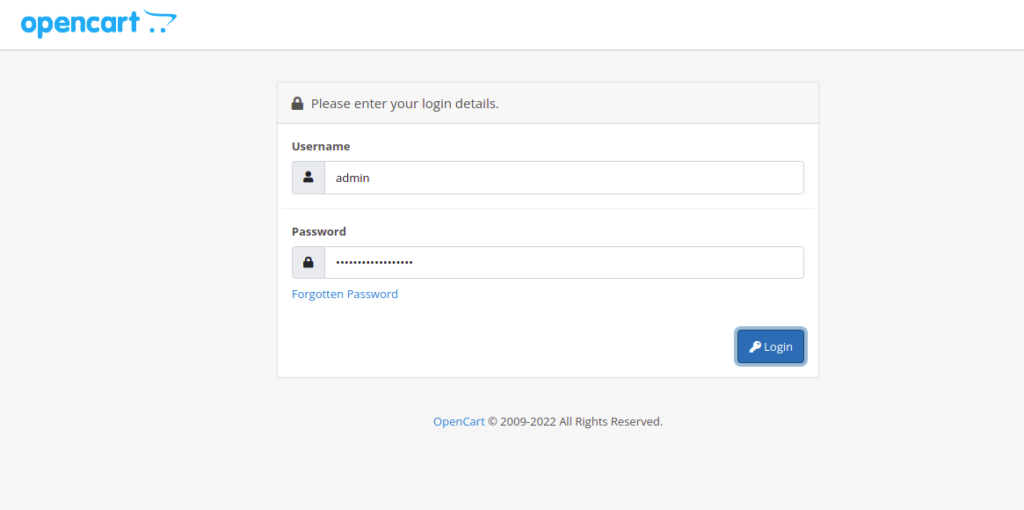
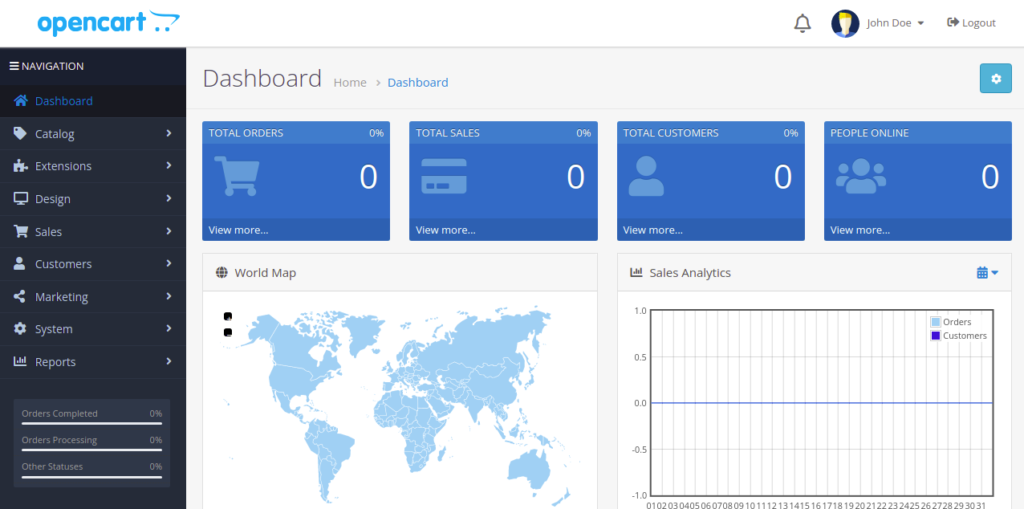
Provide your admin username and password and click on the Login button. You should see the OpenCart dashboard on the following page:
Conclusion
In this post, we explained how to install the OpenCart shopping cart platform on Oracle Linux 10. Your OpenCart platform is now ready to use. You can now start your own online store using OpenCart. Get started on VPS hosting from Atlantic.Net.
* This post is for informational purposes only and does not constitute professional, legal, financial, or technical advice. Each situation is unique and may require guidance from a qualified professional.
Readers should conduct their own due diligence before making any decisions.