
Vue.js is a progressive JavaScript framework that allows you to build user interfaces and single-page applications. It is a famous framework used to simplify the web development process. Vue.js provides useful functionalities for progressive enhancement, allowing you to use it as a drop-in replacement for a library like jQuery. It is simple, reactive, and easy to learn for someone with knowledge of HTML, CSS, and JavaScript.
In this post, we will show you how to install Vue.js on Oracle Linux 10.
Step 1 – Install Node.js
Before starting, you will need to install Node.js on your server.
You can install it using the following command:
dnf install -y nodejs npm
Once Node.js is installed, you can verify the Node.js version with the following command:
node -v
Output:
v22.19.0
You can also see the NPM version using the following command:
npm -v
Output:
10.9.3
Step 2 – Install Vue CLI
Vue CLI is a complete package used for developing and managing Vue.js applications. You can install it using NPM as shown below:
npm install -g @vue/cli
Once Vue CLI is installed, verify its version with the following command:
vue --version
You should see the Vue CLI version in the following output:
@vue/cli 5.0.9
Step 3 – Create an Application with Vue.js
To use Vue.js, let’s create a sample application with the following command:
vue create web-application
You should see the following output:
Vue CLI v5.0.9
? Please pick a preset: (Use arrow keys)
❯ Default ([Vue 3] babel, eslint)
  Default ([Vue 2] babel, eslint)
  Manually select features
⚓  Running completion hooks...

📄  Generating README.md...

🎉  Successfully created project web-application.
👉  Get started with the following commands:

 $ cd web-application
 $ npm run serve

 WARN  Skipped git commit due to missing username and email in git config, or failed to sign commit.
       You will need to perform the initial commit yourself.
Next, change the directory to your application directory and run your application using the following command:
cd web-application
npm run serve
You should see the following output:
> [email protected] serve
> vue-cli-service serve

 INFO  Starting development server...

 DONE  Compiled successfully in 7390ms                                                                                              4:30:40 AM


  App running at:
  - Local:   http://localhost:8080/
  - Network: unavailable

  Note that the development build is not optimized.
  To create a production build, run npm run build.
Step 4 – Access Vue.js Application
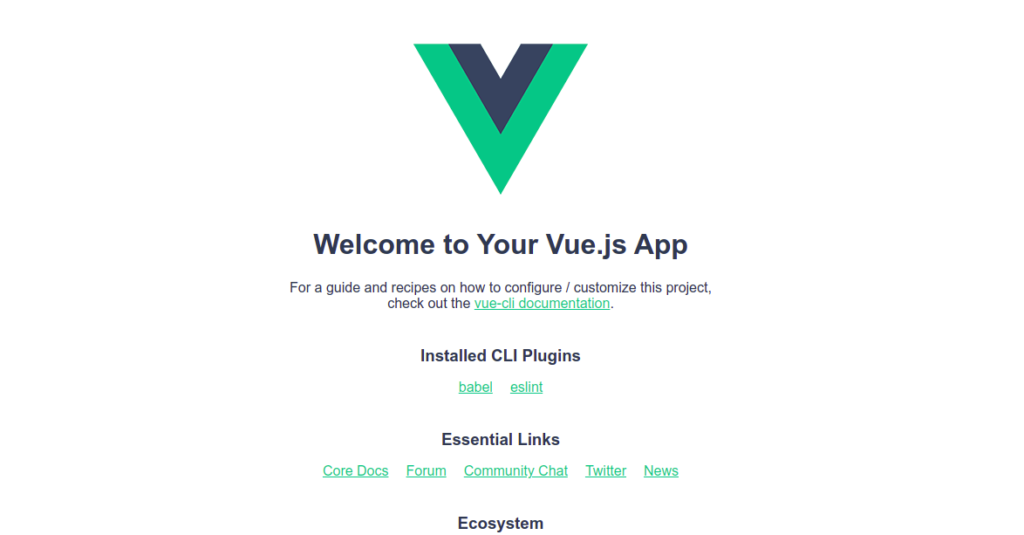
At this point, the Vue.js application is started and listens on port 8080. You can now access it using the URL http://your-server-ip:8080. You should see the Vue.js application default page on the following screen:
Conclusion
In this post, we explained how to install Vue.js on Oracle Linux 10. We also created a sample application using Vue.js. You can now start using the Vue.js framework to develop a modern web application – give it a try on your VPS hosting account today!
* This post is for informational purposes only and does not constitute professional, legal, financial, or technical advice. Each situation is unique and may require guidance from a qualified professional.
Readers should conduct their own due diligence before making any decisions.