
Kamailio is a free and open-source SIP server written in C. It can handle over 5000 call setups per second and serve up to 300,000 active subscribers with just 4GB RAM. You can use Kamailio as a registrar server, location server, proxy server, SIP application server, and redirect server. It supports both IPv4 and IPv6 IP addresses and can be installed on all major Linux-based operating systems.
In this post, we will show you how to install a Kamailio SIP server on Oracle Linux 10.
Step 1 – Install and Configure MariaDB Server
Kamailio uses MariaDB as a database backend, so you will need to install a MariaDB server on your system. You can install it by running the following command:
dnf update -y
dnf install mariadb-server -y
Once the MariaDB server is installed, start and enable the MariaDB service using the following command:
systemctl start mariadb
systemctl enable mariadb
Next, you will need to secure the MariaDB installation and set the MariaDB root password:
mysql_secure_installation
Answer all questions as shown below:
Enter current password for root (enter for none):
OK, successfully used password, moving on...

Setting the root password ensures that nobody can log into the MariaDB
root user without the proper authorisation.

Set root password? [Y/n] Y
New password:
Re-enter new password:
Remove anonymous users? [Y/n] Y
Disallow root login remotely? [Y/n] Y
Remove test database and access to it? [Y/n] Y
Reload privilege tables now? [Y/n] Y
Step 2 – Add Kamailio Repo
By default, the Kamailio package is not included in the Oracle Linux 8 default repo, so you will need to add it to your system. You can add it with the following command:
yum install dnf-plugins-core -y
yum config-manager --add-repo https://rpm.kamailio.org/centos/kamailio.repo
Once the Kamailio repo is added, you can verify it using the following command:
dnf repolist
You should get the following output:
repo id                                    repo name
kamailio                                   Kamailio - latest - Packages for the Kamailio latest release
Step 3 – Install Kamailio Server
Now, run the following command to install the Kamailio server with other required packages:
dnf install vim kamailio kamailio-mysql kamailio-presence kamailio-ldap kamailio-debuginfo kamailio-xmpp kamailio-unixodbc kamailio-utils kamailio-gzcompress kamailio-tls kamailio-outbound -y
After successful installation, you can verify the Kamailio version with the following command:
kamailio -version
You should get the following output:
version: kamailio 6.0.4 (x86_64/linux)
flags: USE_TCP, USE_TLS, USE_SCTP, TLS_HOOKS, USE_RAW_SOCKS, DISABLE_NAGLE, USE_MCAST, DNS_IP_HACK, SHM_MMAP, PKG_MALLOC, MEM_JOIN_FREE, Q_MALLOC, F_MALLOC, TLSF_MALLOC, DBG_SR_MEMORY, USE_FUTEX, FAST_LOCK-ADAPTIVE_WAIT, USE_DNS_CACHE, USE_DNS_FAILOVER, USE_NAPTR, USE_DST_BLOCKLIST, HAVE_RESOLV_RES, TLS_PTHREAD_MUTEX_SHARED
ADAPTIVE_WAIT_LOOPS 1024, MAX_RECV_BUFFER_SIZE 262144, MAX_SEND_BUFFER_SIZE 262144, MAX_URI_SIZE 1024, BUF_SIZE 65535, DEFAULT PKG_SIZE 8MB
poll method support: poll, epoll_lt, epoll_et, sigio_rt, select.
id:
compiled on 00:00:00 Sep 13 2022 with gcc 14.3.1
Step 4 – Configure Kamailio Server
The Kamailio default configuration file is located at /etc/kamailio/kamctlrc. You will need to edit it and define your database and host.
nano /etc/kamailio/kamctlrc
Change the following lines:
DBENGINE=MYSQL
DBHOST=localhost
Save and close the file. Next, open the /etc/kamailio/kamailio.cfg file and enable some features:
nano /etc/kamailio/kamailio.cfg
Add the following lines below #!KAMAILIO.
#!define WITH_MYSQL
#!define WITH_AUTH
#!define WITH_USRLOCDB
#!define WITH_NAT
#!define WITH_PRESENCE
#!define WITH_ACCDB
Save and close the file, then restart the Kamailio service to apply the changes:
systemctl restart kamailio
You can now check the status of Kamailio with the following command:
systemctl status kamailio
You will get the following output:
● kamailio.service - Kamailio - the Open Source SIP Server
     Loaded: loaded (/usr/lib/systemd/system/kamailio.service; enabled; preset: disabled)
     Active: active (running) since Wed 2025-12-10 23:18:54 EST; 4s ago
 Invocation: f4f12f6986c14338bf12a36dae246e81
       Docs: man:kamailio(8)
   Main PID: 247531 (kamailio)
      Tasks: 34 (limit: 24812)
     Memory: 26.7M (peak: 27M)
        CPU: 85ms
     CGroup: /system.slice/kamailio.service
             ├─247531 /usr/sbin/kamailio --atexit=no -DD -P /run/kamailio/kamailio.pid -f /etc/kamailio/kamailio.cfg -m 64 -M 8
Step 5 – Install Siremis Web UI
Siremis provides a web-based interface to manage the Kamailio SIP server. First, install go package with the following command:
dnf install go -y
Next, navigate to the Apache web root directory and download the latest version of Siremis:
cd /var/www
git clone https://github.com/asipto/siremis
Next, change the directory to the downloaded directory and edit the Siremis configuration files:
cd siremis
nano main.go
Change the below line:
httpsrv: "your-server-ip:8284",
Next, copy all sample configuration files.
cp etc/config-sample.json etc/config.json
cp etc/siremis-menu-sample.json etc/siremis-menu.json
cp etc/siremis-charts-sample.json etc/siremis-charts.json
Next, edit the Siremis config file.
nano etc/siremis-config.json
Define your admin username and password:
                        "Username": "admin",
                        "Password": "text123",
Next, create a database and tables:
kamdbctl create
Output.
MySQL password for :
INFO: test server charset
INFO: creating database kamailio ...
INFO: granting privileges to database kamailio ...
INFO: creating standard tables into kamailio ...
INFO: Core Kamailio tables successfully created.
Create the presence related tables? (y/n): y
INFO: creating presence tables into kamailio ...
INFO: Presence tables successfully created.
Create the tables for imc cpl siptrace domainpolicy carrierroute
		drouting userblocklist htable purple uac pipelimit mtree sca mohqueue
		rtpproxy rtpengine secfilter ims_icscf? (y/n): y
INFO: creating extra tables into kamailio ...
INFO: Extra tables successfully created.
Create the tables for uid_auth_db uid_avp_db uid_domain uid_gflags
		uid_uri_db? (y/n): y
INFO: creating uid tables into kamailio ...
INFO: UID tables successfully created.
Finally, build the Siremis with the following command.
go build .
Now, run the Siremis using the below command.
./siremis
Output:
2025/12/10 23:55:14 main.go:52: staring HTTP service on: http://209.23.13.108:8284/siremis ...
Step 6 – Access Siremis Web UI
Now, open your web browser and access the Siremis web interface using the URL http://your-server-ip:8284/siremis. You should see the following page:
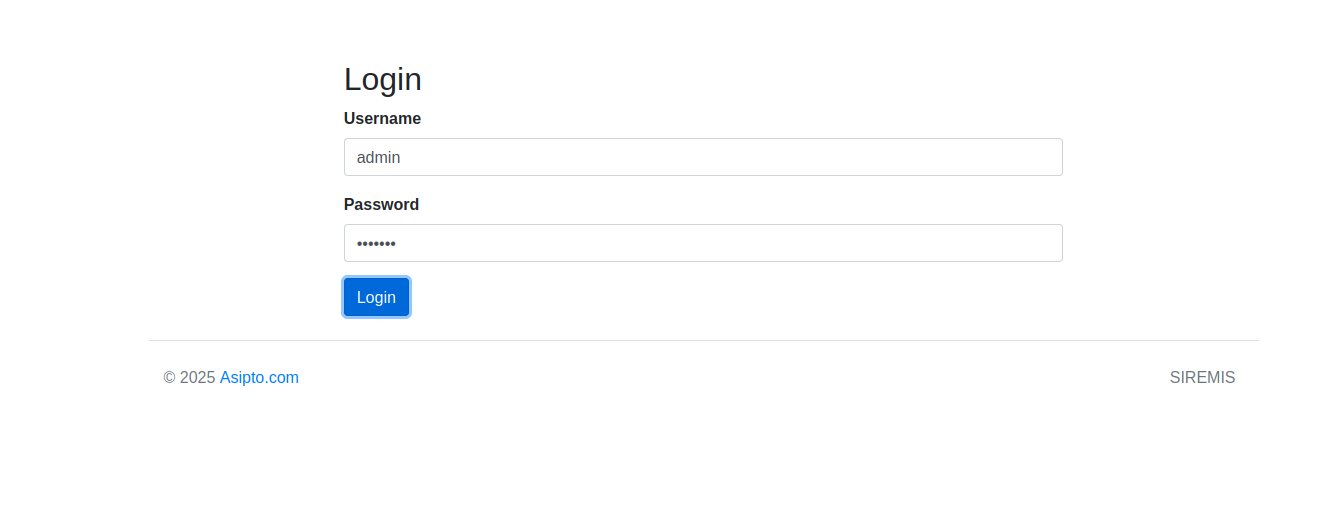
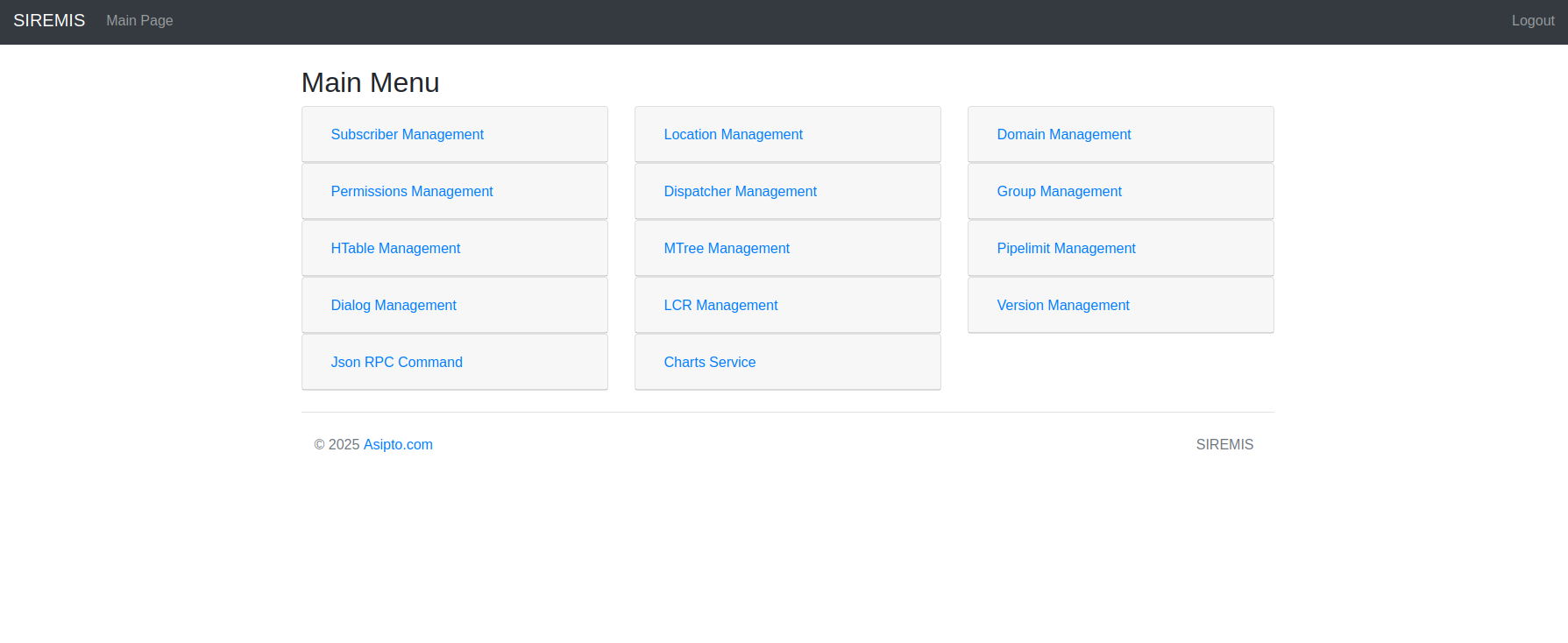
Provide your admin username, password and click on Login. You will see the Siremis dashboard.
Conclusion
In this post, we explained how to install the Kamailio SIP server on Oracle Linux 10. We also explained how to install the Siremis web interface to manage the Kamailio SIP server. You can now start managing your SIP server via a web browser. Get started with Kamailio on VPS Hosting from Atlantic.Net!
* This post is for informational purposes only and does not constitute professional, legal, financial, or technical advice. Each situation is unique and may require guidance from a qualified professional.
Readers should conduct their own due diligence before making any decisions.