
Memcached is a free and open-source in-memory caching service. You can use it with your web application to improve performance by caching session data, user authentication tokens, and API responses in memory. It is multithreaded, scales vertically, and enables sharing large amounts of data across multiple application instances. Some major companies, including Facebook, YouTube, and Twitter, use Memcached for caching.
In this post, we will show you how to install Memcached on Oracle Linux 10.
Step 1 – Install Memcached on Oracle Linux 10
The memcached package is included in the Oracle Linux 10 default repo, so you can install it easily by running the following command:
dnf install memcached libmemcached -y
Once Memcached is installed, you can see the detailed information of Memcached with the following command:
rpm -qi memcached
Sample output:
Name        : memcached
Epoch       : 0
Version     : 1.6.23
Release     : 7.el10
Architecture: x86_64
Install Date: Sun 28 Dec 2025 11:28:01 PM EST
Group       : Unspecified
Size        : 481103
License     : BSD-3-clause AND Zlib AND BSD-2-Clause AND LicenseRef-Fedora-Public-Domain
Signature   :
              RSA/SHA256, Sat 15 Mar 2025 07:03:10 PM EDT, Key ID bc4d06a08d8b756f
Source RPM  : memcached-1.6.23-7.el10.src.rpm
Build Date  : Mon 27 Jan 2025 09:11:08 AM EST
Build Host  : build-ol10-x86_64.oracle.com
Vendor      : Oracle America
URL         : https://www.memcached.org/
Summary     : High Performance, Distributed Memory Object Cache
Description :
memcached is a high-performance, distributed memory object caching
system, generic in nature, but intended for use in speeding up dynamic
web applications by alleviating database load.
Step 2 – Manage Memcached Service
By default, the Memcached service is managed by systemd. You can use the systemctl command to manage the Memcached service. To start the Memcached service, run the following command:
systemctl start memcached
To enable the Memcached service to start after the reboot, run the following command:
systemctl enable memcached
To check the status of the Memcached service, run the following command:
systemctl status memcached
Sample output:
● memcached.service - memcached daemon
     Loaded: loaded (/usr/lib/systemd/system/memcached.service; disabled; preset: disabled)
     Active: active (running) since Sun 2025-12-28 23:28:37 EST; 4s ago
 Invocation: 19315c2eb96b4d5eb25e50ddbdde155e
   Main PID: 142733 (memcached)
      Tasks: 10 (limit: 24812)
     Memory: 1.8M (peak: 2.1M)
        CPU: 19ms
     CGroup: /system.slice/memcached.service
             └─142733 /usr/bin/memcached -p 11211 -u memcached -m 64 -c 1024 -l 127.0.0.1,::1

Dec 28 23:28:37 oracle systemd[1]: Started memcached.service - memcached daemon.
Step 3 – Configure Memcached
The Memcached default configuration file is located at /etc/sysconfig/memcached. You can edit it with the following command:
nano /etc/sysconfig/memcached
The default configuration is shown below. You can change it per your requirements:
PORT="11211"
USER="memcached"
MAXCONN="1024"
CACHESIZE="64"
OPTIONS="-l 127.0.0.1,::1"
Save and close the file, then restart the Memcached service to apply the changes:
systemctl restart memcached
Step 4 – Install Memcached PHP Extension
You can use Memcached as a caching service for all PHP-based applications. To do so, you will need to install the Memcached extension for PHP.
You can install the Memcached PHP extensions using the following command:
dnf install php-pecl-memcache php-pecl-memcached -y
Step 5 – Verify Memcached for PHP
To verify the Memcached integration with PHP, you will need to install the Nginx web server and PHP package to your server.
dnf install nginx php php-cli -y
Next, create an info.php file with the following command:
nano /var/www/html/info.php
Add the following code:
<?php
phpinfo();
?>
Save and close the file, then create a symbolic link of info.php file to the Nginx default web root directory:
ln -s /var/www/html/info.php /usr/share/nginx/html/
Next, restart the Nginx service to apply the changes:
systemctl start nginx
Now, open your web browser and type the URL http://your-server-ip/info.php. You should see the following page:
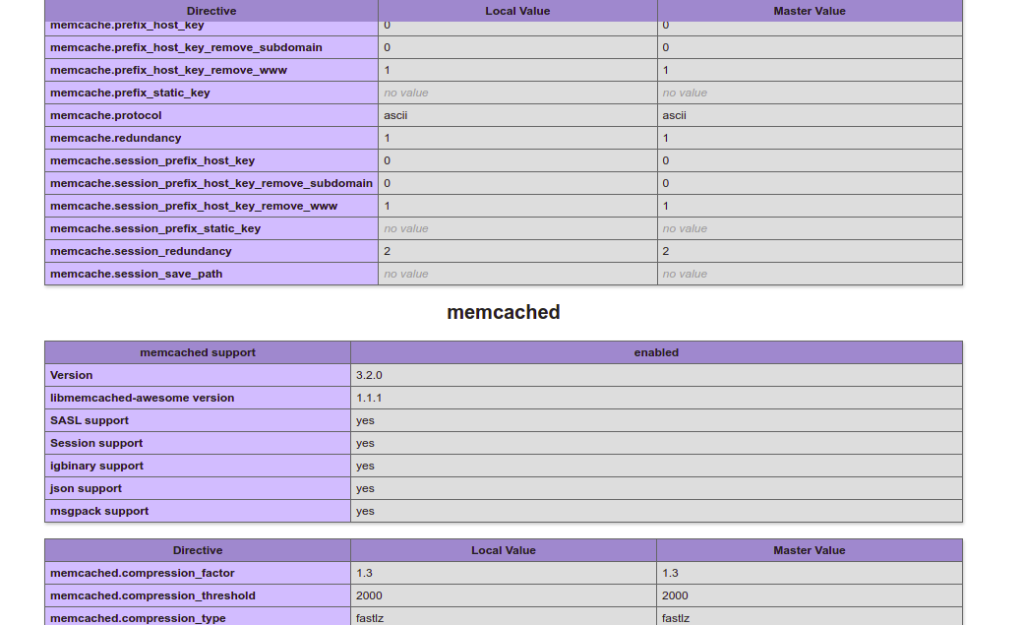
As you can see, both Memcache and Memcached PHP extensions are enabled.
Conclusion
In this post, we explained how to install Memcached on Oracle Linux 10. We also explained how to integrate Memcached with PHP applications. You can now use Memcached to speed up your web application. Try it on VPS hosting from Atlantic.Net!
* This post is for informational purposes only and does not constitute professional, legal, financial, or technical advice. Each situation is unique and may require guidance from a qualified professional.
Readers should conduct their own due diligence before making any decisions.