
phpBB, which stands for “PHP Bulletin Board,” is an open-source internet forum software written in the PHP programming language. It allows users to create and manage online discussion forums where participants can post messages, engage in discussions, share files, and interact with each other. It provides a platform for communities to communicate, collaborate, and exchange information on various topics of interest.
In this tutorial, we will show you how to install phpBB forum on Ubuntu 22.04.
Step 1 – Install LAMP Server
Before starting, you will need to install a LAMP server on your server. You can install it using the following command.
apt install apache2 mariadb-server php libapache2-mod-php php-gd php-curl openssl php-imagick php-intl php-json php-ldap php-common php-mbstring php-mysql php-imap php-sqlite3 php-net-ftp php-zip unzip php-pgsql php-ssh2 php-xml wget unzip -y
Once the LAMP server is installed, start and enable Apache and MariaDB services.
systemctl start apache2
systemctl start mariadb
systemctl enable apache2
systemctl enable mariadb
Step 2 – Create a Database for phpBB
phpBB uses MariaDB as a database backend, so you will need to create a database and user for phpBB.
First, connect to the MariaDB server console:
mysql
Next, create a database and user:
CREATE DATABASE phpdb;
GRANT ALL ON phpdb.* to 'phpbb'@'localhost' IDENTIFIED BY 'password';
Next, flush the privileges and exit from the MariaDB shell.
FLUSH PRIVILEGES;
EXIT;
Step 3 – Install phpBB Ubuntu 22.04
First, visit the phpBB download page, copy the URL of the latest phpBB, and download it using the following command.
wget https://download.phpbb.com/pub/release/3.3/3.3.7/phpBB-3.3.7.zip
Once the download is completed, unzip the downloaded file using the following command.
unzip phpBB-3.3.7.zip
Next, move the extracted directory to the Apache web root directory.
mv phpBB3 /var/www/html/phpbb
Next, set proper permissions and ownership.
chown -R www-data:www-data /var/www/html/phpbb
chmod -R 775 /var/www/html/phpbb
Step 4 – Create an Apache Virtual Host for phpBB
Next, you will need to create an Apache virtual host configuration file to host phpBB on the web.
nano /etc/apache2/sites-available/phpbb.conf
Add the following configuration:
<VirtualHost *:80>
      ServerAdmin admin@example.com
      DocumentRoot /var/www/html/phpbb
      ServerName phpbb.example.com

      <Directory /var/www/html/phpbb>
                Options FollowSymlinks
                AllowOverride All
                Require all granted
       </Directory>

ErrorLog ${APACHE_LOG_DIR}/phpbb_error.log
CustomLog ${APACHE_LOG_DIR}/phpbb_access.log combined


</VirtualHost>
Save the file, then activate the Apache virtual host and rewrite the module using the following command:
a2ensite phpbb
a2enmod rewrite
Finally, restart the Apache service to apply the changes.
systemctl restart apache2
Step 5 – Access phpBB Web Interface
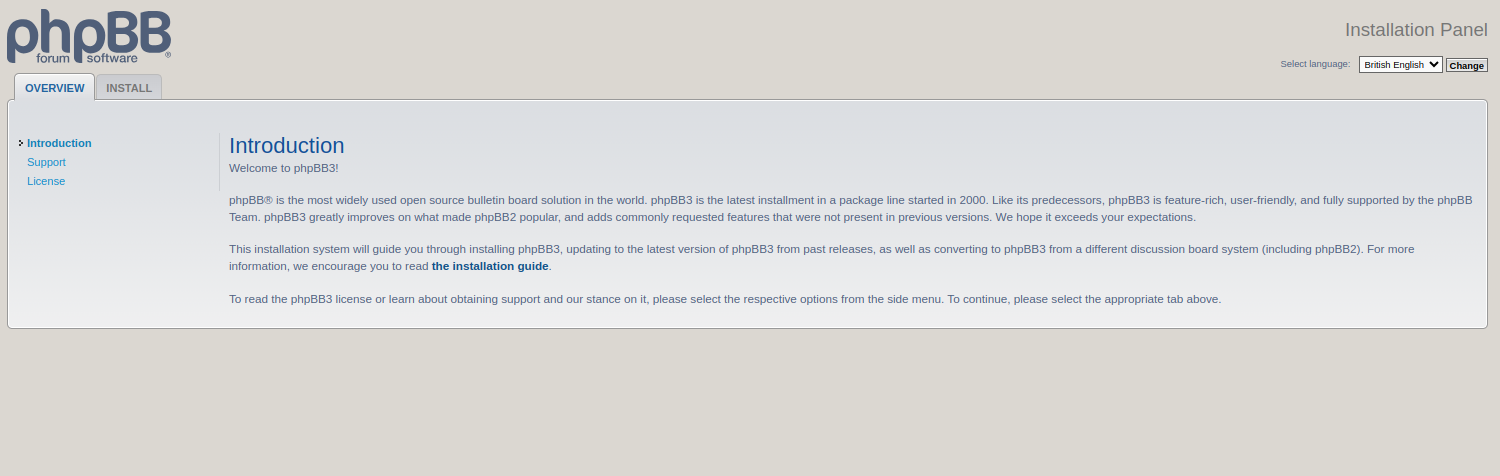
Now, open your web browser and access the phpBB web interface using the URL http://phpbb.example.com. You will see the phpBB overview page:
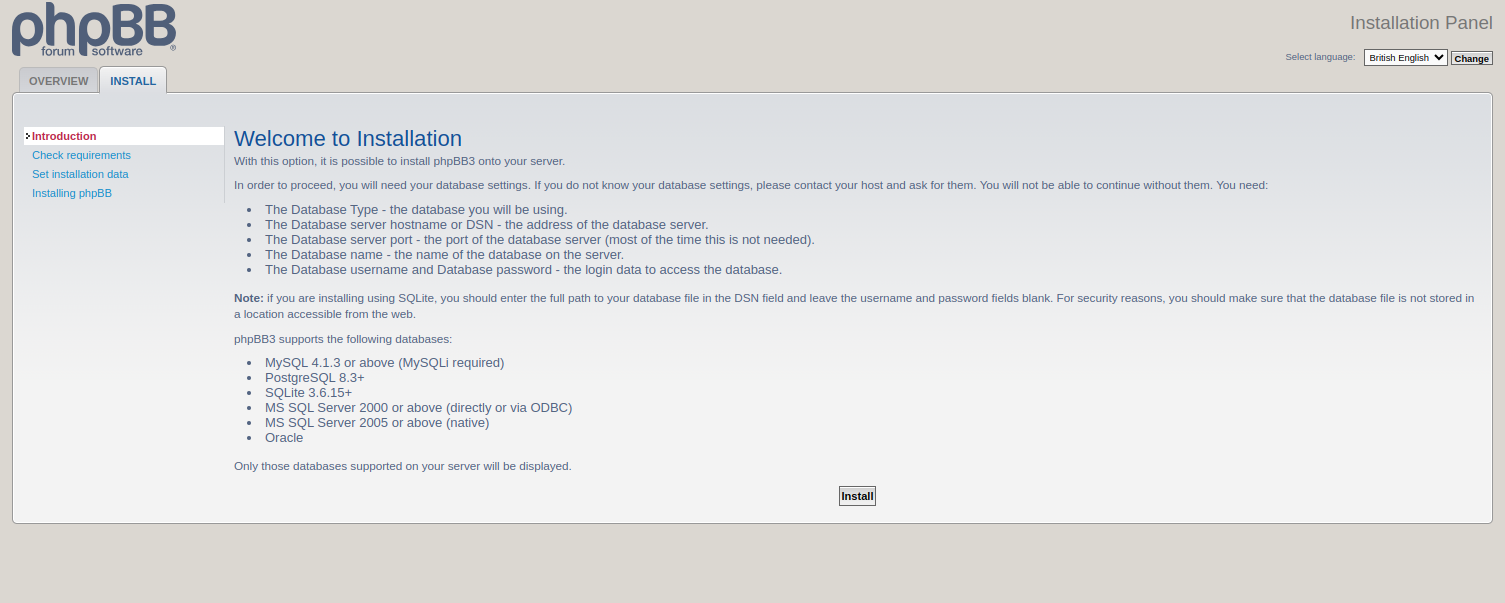
Click on the INSTALL tab. You will see the Installation Welcome page.
Click on Install. You will see the administration configuration page:
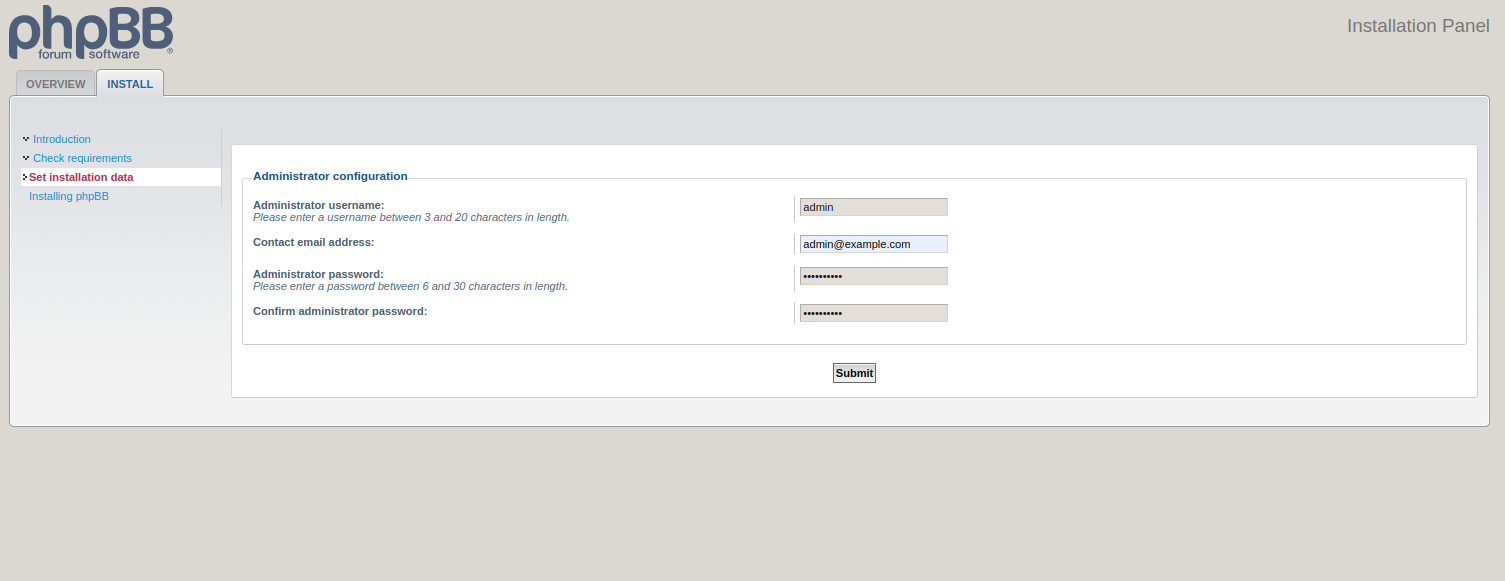
Provide your admin username and password and click on Submit. You will see the database configuration page.
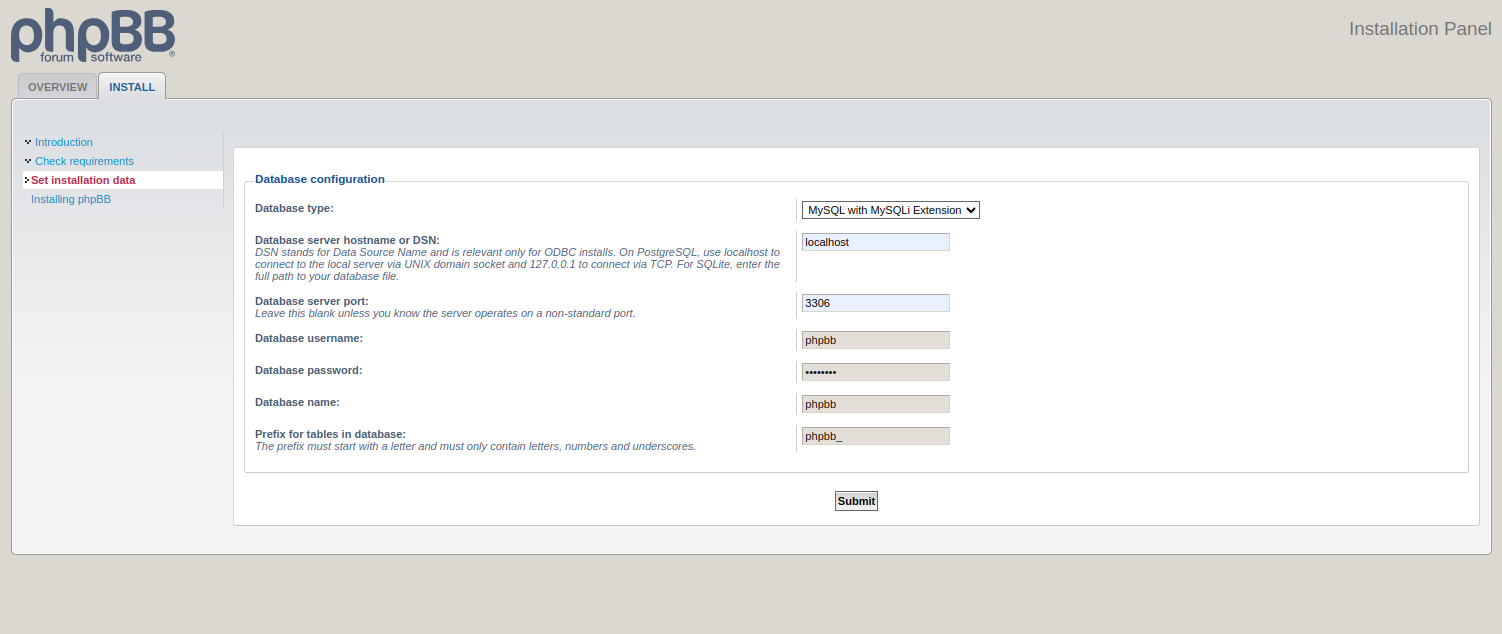
Provide your database user, password, and database, and click on Submit. You will see the server configuration page:
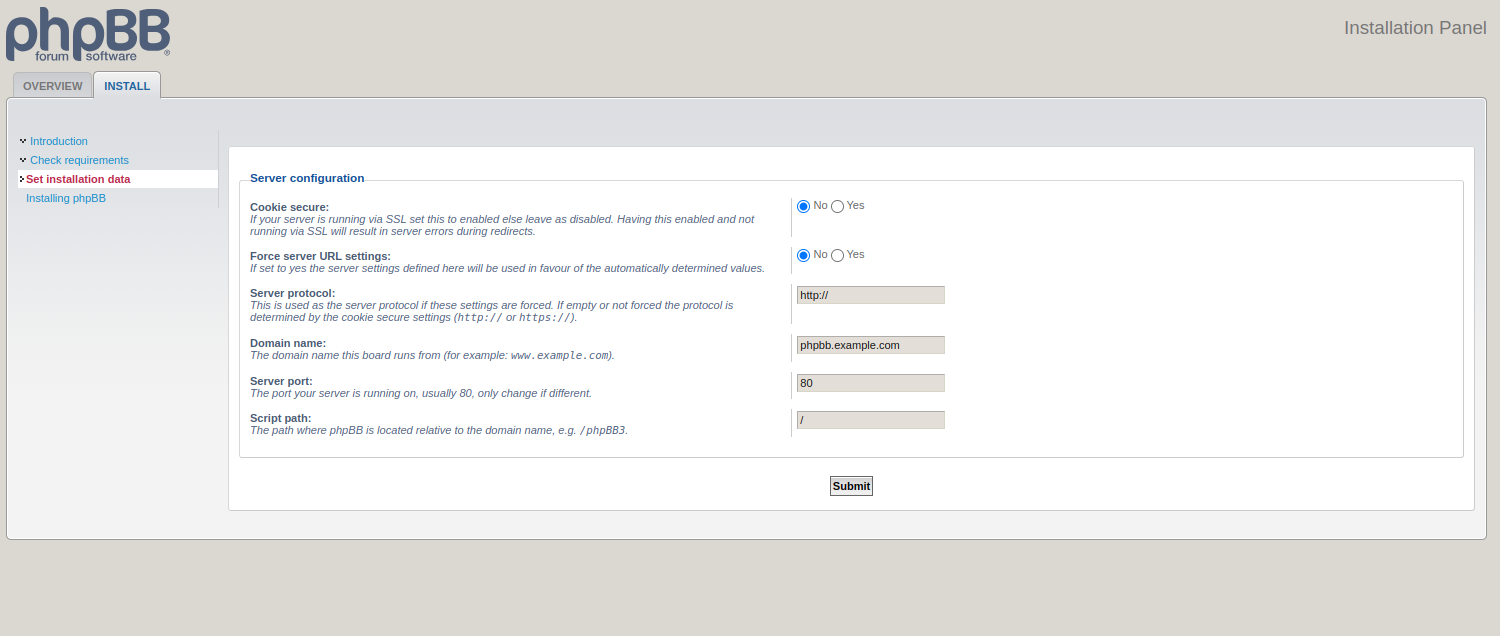
Provide all the required details and click on Submit. You will see the email configuration page:
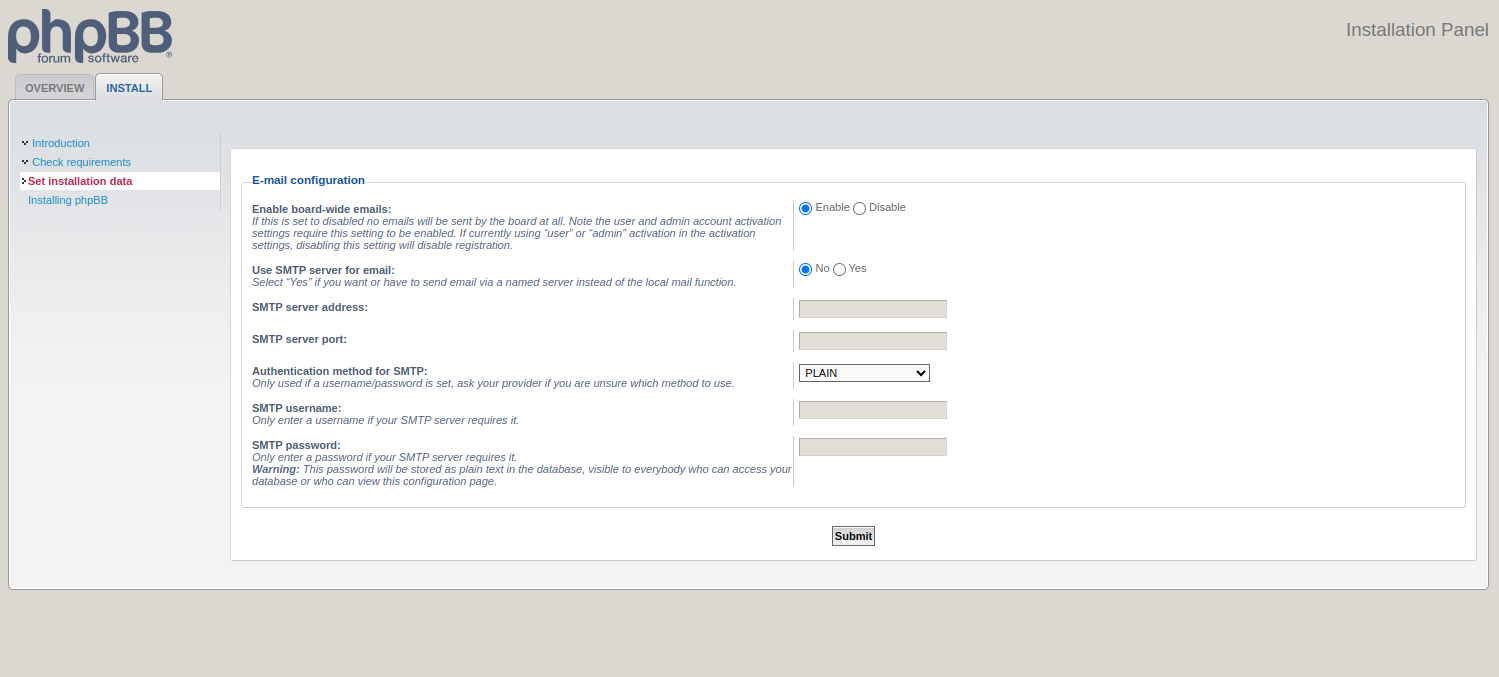
Provide all necessary configurations and click on Submit. You will see the board configuration page:
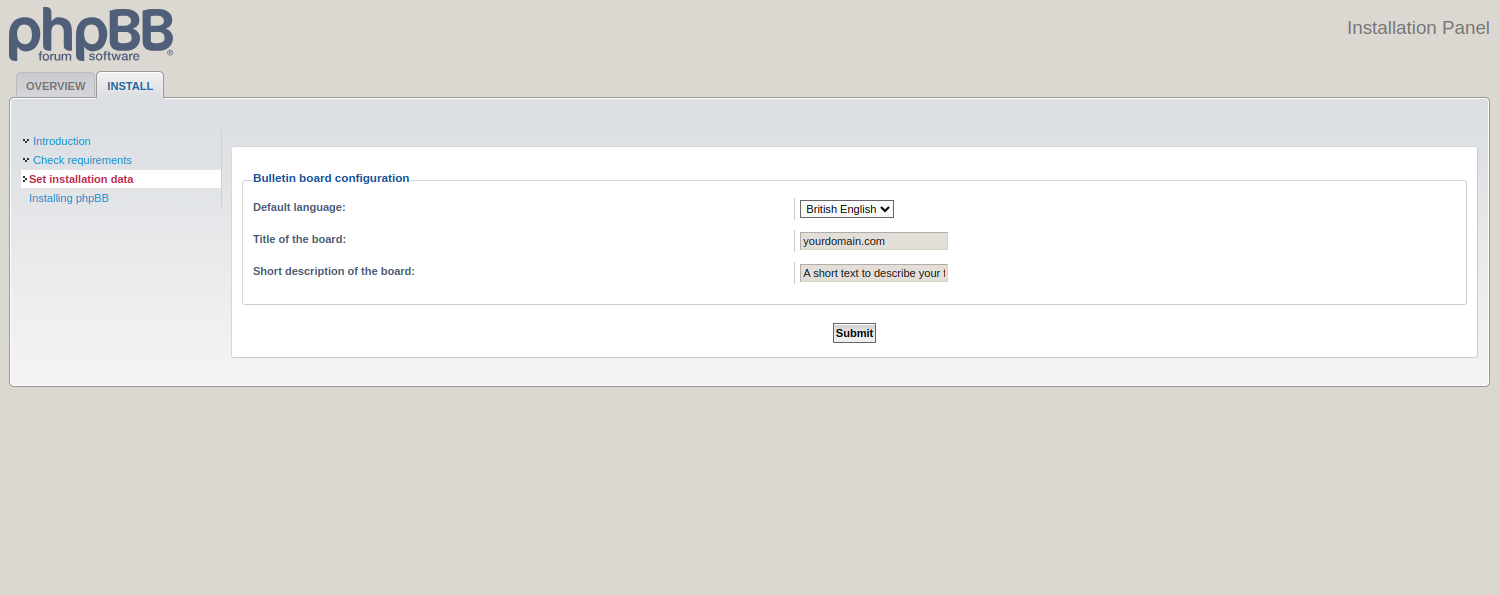
Provide your board name and description and click on Submit. You will see the following page:
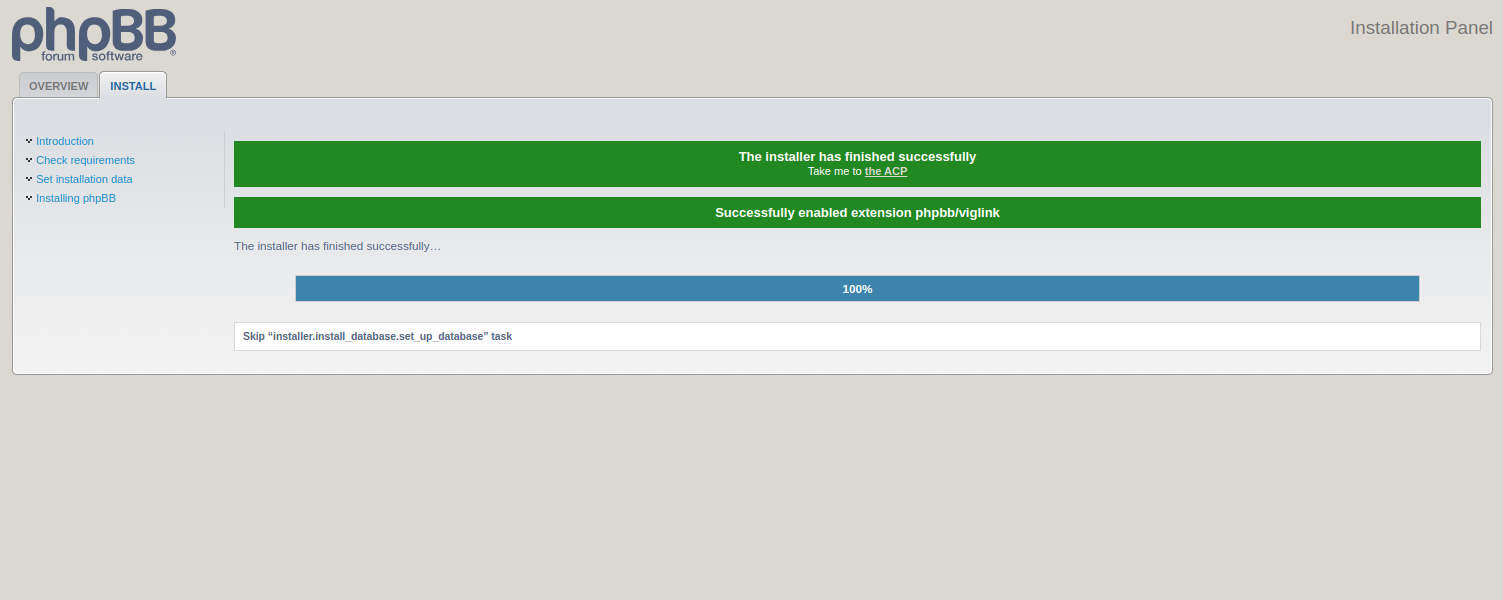
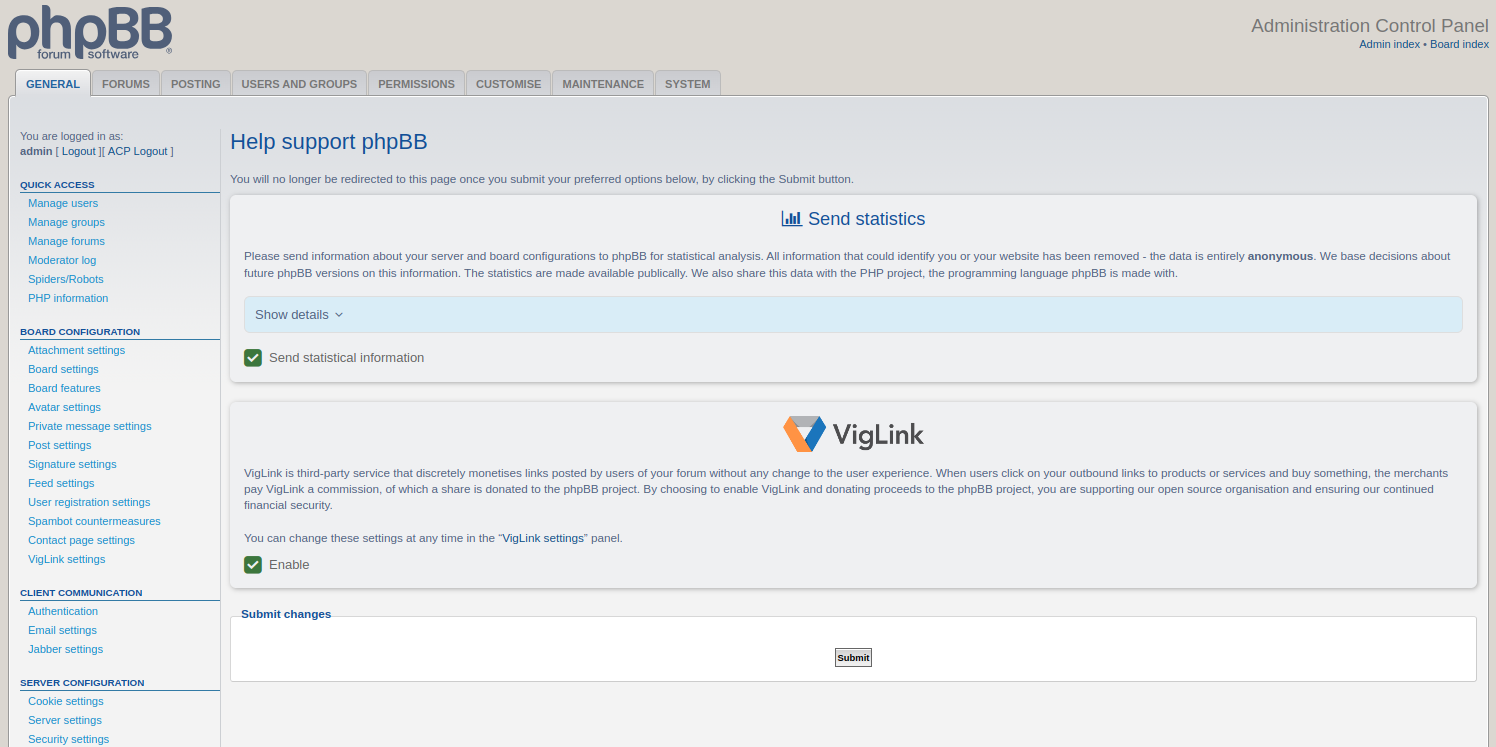
Click on Take me to the ACP. You will be redirected to the phpBB dashboard.
Conclusion
phpBB offers powerful online communities and discussion platforms to end users. With its user-friendly interface and extensive feature set, phpBB empowers users to create, customize, and manage forums tailored to their needs and preferences. You can now test phpBB on dedicated server hosting from Atlantic.Net!

Written by
Hitesh Jethva is a regular contributor to the Atlantic.Net blog. With over 15 years of experience in Linux and open-source technologies, he founded Linux Buz, a website dedicated to Linux enthusiasts.