
Introduction
Snapshots save a point-in-time copy of your Cloud Server’s local storage. You can restore your server to the point-in-time when the snapshot was taken, transfer a copy of your snapshot to another location, or create a new Cloud Server from a snapshot.
Snapshot highlights:
Save a point-in-time copy of your Cloud Server’s local storage
Restore your server to the point-in-time when the snapshot was taken
Transfer a copy of your snapshots to another location
Automatically encrypted at rest to provide a safe home for your data
Straight forward pricing at 5 cents per GB per month for each location a snapshot is stored
Pricing is based on the size of the snapshot, not the size of the disk/file system being saved
What you will learn in this guide
Creating a Snapshot
Restoring a Snapshot
Making a Snapshot Available in Another Location
Creating a Cloud Server from a Snapshot
Migrating a Cloud Server using Snapshots
Deleting a Snapshot from a Location
Deleting a Snapshot from all Locations
Creating a Snapshot
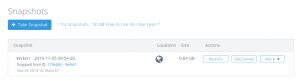
In the Atlantic.Net Control Panel, click on “Snapshots”, then click the “Take Snapshot” button. Next select the server to snapshot, provide a descriptive name for the snapshot, and press “Create” to create the Snapshot.
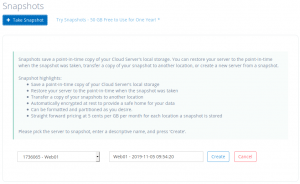
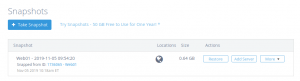
After the Snapshot is done creating, you should see that the Volume is attached to the server you chose.
Restoring a Snapshot
You can restore your server to the point-in-time when the snapshot was taken. You may wish to do this to recover deleted files, accidental configuration changes, etc.
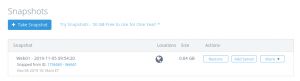
In the Atlantic.Net Control Panel, click on “Snapshots”, then click the “Restore” button associated with Snapshot you wish to restore from.
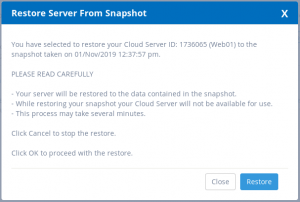
You will be presented with information regarding the Snapshot and important information regarding the restore process. If you wish to proceed, click the “Restore” button to begin the restore process.
Making a Snapshot Available in Another Location
If you want to use a Snapshot in a location other than where the Snapshot was created, you’ll need to make the snapshot available in that location. Doing so will allow you to create new Cloud Servers from the Snapshot.
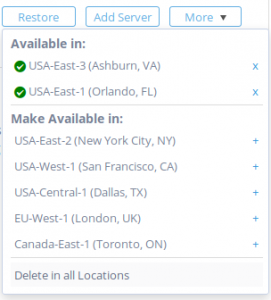
In the Atlantic.Net Control Panel, click on “Snapshots”, then click the “More” button associated with Snapshot you wish to make available in another location.
You will be presented with a list showing the locations the Snapshot is currently available (“Available in”) and a list showing locations where you can make it available (“Make Available in”). Click the “+” symbol next to the locations you wish to make the Snapshot available in.
A spinner will display while the Snapshot is being copied to the desired location(s). This process may take several minutes.
When the image is done being copied to the desired location(s) a check mark will be displayed representing that the Snapshot is now available in that location. You can now create new Cloud Servers from the Snapshot in that location.
Creating a Cloud Server from a Snapshot
You can create new Cloud Servers from an existing Snapshot in any location where the Snapshot resides.
Note: If the Snapshot is not currently in the location you wish to create the new Cloud Server, simply make the Snapshot available in the desired location then follow the steps below.
You can create a new Cloud Server from a Snapshot from either the Add Server Page or from the Snapshots Page.
From the Add Server Page
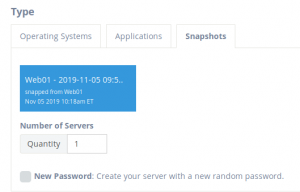
In the Atlantic.Net Control Panel, click on “Servers”, then click the “Add Server” button. Next select “Snapshots” under the “Type” section and click name of the Snapshot you wish to create the New Server from. You can then choose the quantity of Cloud Servers to create and whether you would like to have a new password generated for the server(s) or keep the original password of your Snapshot. You will then proceed to select the same remaining options as you would when building a Cloud Server.
From the Snapshot Page
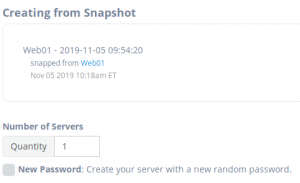
In the Atlantic.Net Control Panel, click on “Snapshots”, then click the “Add Server” button associated with Snapshot you wish to create a new Cloud Server from.
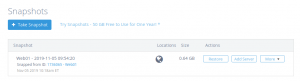
On the Add Server from Snapshot page you can then choose the quantity of Cloud Servers to create and whether you would like to have a new password generated for the server(s) or keep the original password of your Snapshot. You will then proceed to select the same remaining options as you would when building a Cloud Server.
Migrating a Cloud Server using Snapshots
There may be times when you wish to migrate your Cloud Server from one location to another one. You can accomplish by first Making a Snapshot Available in Another Location and then Creating a Cloud Server from a Snapshot.
Deleting a Snapshot from a Location
When you no longer want a Snapshot in a specific location you can delete it from that location.
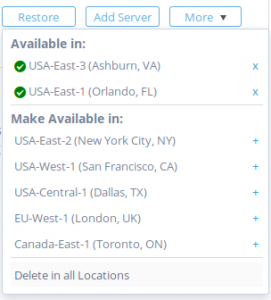
In the Atlantic.Net Control Panel, click on “Snapshots”, then click the “More” button associated with Snapshot you wish delete from a specific location.
You will be presented with a list showing the locations the Snapshot is currently available (“Available in”). Click the “X” symbol next to the location you wish to delete the Snapshot from.
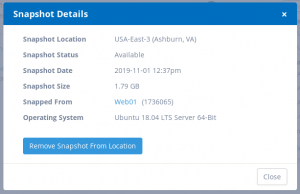
You will be presented with information regarding the Snapshot. Press the “Remove Snapshot From Location” button to delete the Snapshot from the specified location. Once the Snapshot is deleted from a location you will no longer be charged for the storage of that Snapshot in that location.
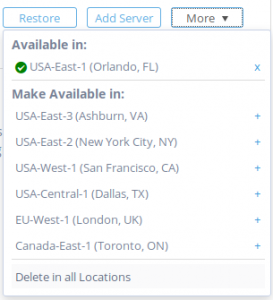
You should now see that the Snapshot you deleted is no longer listed in the “Available in” section.
Deleting a Snapshot from all Locations
When you no longer want a Snapshot you can delete it from all locations at once.
In the Atlantic.Net Control Panel, click on “Snapshots”, then click the “More” button associated with Snapshot you wish delete.
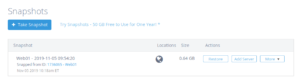
Click on the “Delete in all Locations” text at the bottom of the presented list.
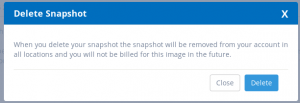
You will be presented with a warning message. If you wish to proceed, press the “Delete” button to delete the Snapshot from all locations. Once the Snapshot is deleted you will no longer be charged for the storage of that Snapshot.
You should now see that the Snapshot is no longer displayed on the Snapshot Page.